
38% of startups fail because of cash flow issues, not bad products.
Odoo accounting for startups offers a solution that grows with you, from your first invoice to Series A reporting.
But here’s what most founders miss: choosing between free and paid versions, setting up the wrong modules, or spending months on implementation can cost you more than bad bookkeeping ever would.
The difference between thriving startups and those scrambling at tax time often comes down to setting up your accounting system correctly from day one.
Key Takeaways
- How to choose between Odoo Community and Enterprise editions based on your actual stage and budget.
- The 5 must-have features you need in your first 90 days (and which ones to skip until later).
- A realistic 4-week implementation timeline that won’t derail your operations.
- Transparent cost breakdowns that include the hidden expenses most guides ignore.
Why Startups Are Choosing Odoo Accounting?
Let’s start with the obvious question: why switch to Odoo when QuickBooks and Xero already dominate the market?
Most accounting software locks you into rigid pricing tiers and forces you to buy features you don’t need yet.
You’re paying $50/month for inventory management when you’re still running a service business. Or you’re stuck with basic reporting because advanced analytics costs another $30/user. That adds up fast when you’re watching every dollar.
Odoo takes a different approach. You start with what you need today and add modules as you grow. Need just invoicing and bank reconciliation for your 3-person team?
Install only those. Ready to add inventory tracking after your Series A? It’s a single click, and everything shares the same database—no data migration, no duplicate entry, no integration headaches.
What Makes Odoo Different from Traditional Accounting Software?
- Modular architecture means you don’t pay for bloat. Unlike competitors that bundle everything into expensive tiers, Odoo lets you activate only the apps you’ll actually use. Your invoicing module talks directly to your Customer Relationship Management (CRM) system, which connects to your inventory—all in one unified database.
- No vendor lock-in keeps you in control. Your data lives in an open-source PostgreSQL database that you own. Want to switch providers? Export everything. Need custom reports? You’re not waiting for your software company to add features to their roadmap.
- Real integration, not just connections. When we say integrated, we don’t mean “connects via Zapier.” When you create a sales order in Odoo, it automatically generates an invoice, updates inventory levels, and records the accounting entry—all in under 90 milliseconds, according to Odoo’s performance benchmarks.
This matters more than you think.
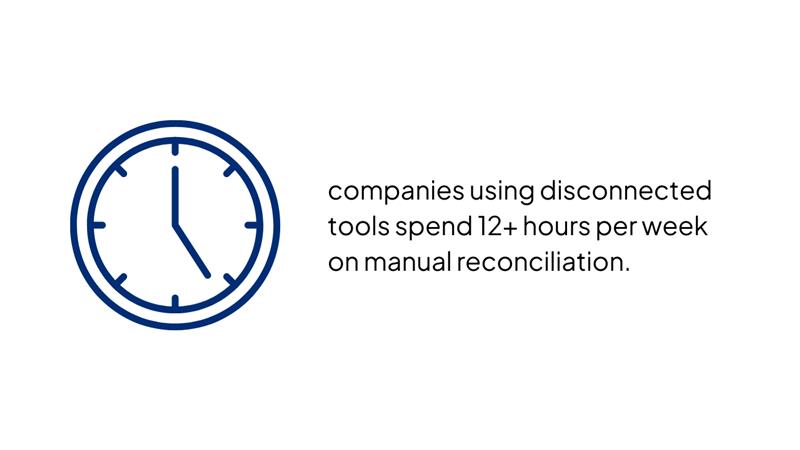
A recent study on startup financial management found that companies using disconnected tools spend 12+ hours per week on manual reconciliation.
That’s time you could spend talking to customers or refining your product.
Odoo isn’t perfect for everyone, but if you’re building a product company that needs accounting to work alongside sales, inventory, and customer data, it’s worth a serious look. The Community Edition is completely free, so your only risk is the time spent testing it.
Understanding Odoo Accounting: Community vs Enterprise Edition
The choice between Community and Enterprise isn’t just about money—it’s about timing.
Pick Community too long, and you’ll hit walls that slow your growth. Jump to Enterprise too early, and you’re burning runway on features you won’t use for months.
Odoo Community Edition: What You Get for Free
Community edition by Odoo provides core accounting functionality: double-entry bookkeeping, invoicing, bank reconciliation, expense tracking, and basic financial reports (Profit and Loss, Balance Sheet, Cash Flow). You can manage multiple currencies, handle tax calculations, and generate the reports you’ll need for tax season.
Best for: Bootstrapped startups with fewer than 5 employees, simple accounting needs (mostly invoicing and expense tracking), founders comfortable with forum-based support, and companies that can wait 24-48 hours for help when issues arise.
The catches? No mobile app means you’re tied to your laptop. No AI-powered invoice scanning means manual data entry. No priority support means you’re searching forums when something breaks at month-end. And no automatic updates means you’re responsible for maintenance.
Odoo Enterprise Edition: When the Investment Makes Sense
Enterprise adds the features that save hours every week: AI invoice digitization (98% accuracy rate, per Odoo), full mobile apps for iOS and Android, priority support with live chat, automatic bank matching (95% of transactions), and advanced reporting with custom dashboards.
Pricing sits around $31.10/user/month when billed annually (as of 2025). For a 5-person team, that’s $1,865/year—less than hiring a part-time bookkeeper for two days a month.
The ROI math changes fast. If your team spends 3 hours/week on manual data entry, and Enterprise’s AI features cut that to 30 minutes, you’re saving 2.5 hours weekly. At a conservative $50/hour, that’s $6,500/year in recovered time. The software pays for itself if you have just 3-4 people touching accounting tasks.
| Feature | Community | Enterprise |
|---|---|---|
| Core Accounting | ✓ | ✓ |
| AI Invoice Scanning | ✗ | ✓ |
| Mobile Apps | Basic | Full |
| Support | Forums | Priority + Chat |
| Automatic Updates | ✗ | ✓ |
| Cost | $0 | ~$31/user/month |
Our recommendation: Start with Community if you’re pre-revenue or under $10K/month in expenses. Switch to Enterprise when you hit 5+ employees, raise seed funding, or find yourself spending 5+ hours/week on manual accounting tasks.
The edition choice matters, but it’s reversible.
You can migrate from Community to Enterprise without losing data. What matters more is understanding which features you’ll actually use—which is exactly what we’re covering next.
Essential Odoo Accounting Features Startups Actually Need
You’ve picked your edition. Now comes the trap that kills most implementations: activating every feature because it sounds useful.
Here’s what actually happens. You turn on Analytic Accounting, Multi-Company Management, Asset Tracking, and Budget Forecasting on day one. Your team opens Odoo and sees 47 menu options. They’re overwhelmed, confused about where to enter a simple expense, and they go back to their spreadsheet within a week.
Must-Have Features for Pre-Seed to Seed Stage (Days 1-90)
Focus on these five features first. Everything else can wait.
- Invoicing & Accounts Receivable Why it matters: You need to get paid, and manual invoices in Google Docs look unprofessional. Odoo generates branded invoices in seconds, tracks when customers view them, and sends automatic payment reminders.
How it saves time: Create invoice templates once, then duplicate for new clients. Connect payment processors (Stripe, PayPal) so customers can pay directly from the invoice. Track which invoices are overdue without checking your inbox.
- Bank Reconciliation Odoo connects to 28,000+ banks worldwide through direct feeds. When a payment hits your account, Odoo’s AI suggests matches to outstanding invoices with 95% accuracy, according to Odoo’s accounting benchmarks. You click “validate” instead of manually matching transactions to receipts.
- Expense Tracking Your mobile app becomes a receipt scanner. Snap a photo of a dinner receipt, and AI extracts the vendor, amount, date, and category. Submit for approval without touching your laptop. This alone saves founders 2-3 hours monthly.
- Basic Financial Reports You need three reports to run your business: Profit and Loss (P&L) shows if you’re profitable, Balance Sheet shows what you own and owe, and Cash Flow Statement shows where money’s actually moving. Odoo generates all three with real-time data—no waiting until month-end.
- Multi-Currency Support If you’re paying contractors in EUR or charging customers in GBP, Odoo handles conversions automatically using daily exchange rates. Your P&L shows everything in your home currency, but you can drill down to see the original transaction amounts.
Advanced Features to Activate as You Scale (Series A+)
Save these for when you have 10+ employees or complex operations:
- Analytic Accounting tracks profitability by project, client, or department. Useful when you need to know if Project X is actually making money.
- Multi-Company Management lets you manage subsidiaries or multiple entities under one login. Don’t activate this unless you actually have multiple legal entities.
- Advanced Tax Management handles complex scenarios like partial VAT exemptions or tax-on-tax calculations. Only needed if you operate in multiple countries with different tax regimes.
- Budget Forecasting compares actual spending to planned budgets. Great for Series A+ when investors want to see variance reports.
Start small. The beauty of Odoo’s modular setup is you can always add more. But you can’t easily un-confuse a team that’s drowning in options.
Step-by-Step: How to Set Up Odoo Accounting for Your Startup
Most implementation guides skip the messy reality: you’ll hit snags, waste time on wrong configurations, and probably need to restart once. Here’s how to avoid that.
We’re giving you a 4-week timeline that assumes you’re implementing basic accounting (invoicing, expenses, bank feeds, reporting). If you’re adding inventory or manufacturing, add 2-4 weeks.
Step 1: Pre-Implementation Planning (Week 1)
Time commitment: 5-8 hours
Start by answering three questions: What accounting tasks eat up the most time right now? Which Odoo edition fits your budget and needs (refer back to H2 #2)? Which modules do you need immediately versus next quarter?
Write this down. Seriously. Founders skip this step and end up configuring features they won’t use for six months.
Define your requirements: List every accounting task you do weekly (invoicing, expense approval, bank reconciliation, financial reporting). Identify pain points (manual data entry, slow customer payments, missing expense receipts). Decide who needs access and what permissions they need (full admin, accountant, view-only).
Step 2: Initial Setup & Configuration (Week 2)
Time commitment: 10-15 hours
Create your Odoo account at odoo.com or set up self-hosting if you chose that route. You’ll configure company details (legal name, address, tax ID), select your country for fiscal localization (this auto-configures tax rules and report formats), and choose your fiscal year start date.
Critical: Set up your Chart of Accounts (COA) correctly. Don’t just use the default. Work with your accountant or use industry-specific templates. Your COA is the foundation—getting it wrong means inaccurate reports and nightmare tax filing. Common mistake: Not validating opening balances before going live. Enter your starting cash balance, outstanding invoices, and unpaid bills. Double-check these match your previous system or bank statements.
Configure tax rules based on your location. If you’re in the US, set up state sales tax. If you’re in the EU, configure Value Added Tax (VAT). Odoo’s country-specific packages handle most of this automatically, but verify the rates match your actual obligations.
Step 3: Data Migration (Week 2-3)
Time commitment: 8-12 hours
Export your existing data from spreadsheets, QuickBooks, Xero, or whatever you’re using now. You need: customer list with contact details and outstanding invoices, vendor list with payment terms and unpaid bills, product/service catalog with prices, and opening account balances.
Clean this data before importing. Remove duplicates, standardize formats (phone numbers, addresses), verify amounts, and fix any obvious errors. Odoo’s import tool accepts CSV files—format your data to match Odoo’s templates (downloadable from the import screens).
Import in this order: Chart of Accounts first, then customers and vendors, then products/services, then outstanding invoices and bills, and finally opening balances. After each import, spot-check 5-10 records to verify accuracy.
Run a trial balance to ensure debits equal credits. If they don’t, you’ve got a data problem. Fix it now, not after you’ve created a month of new transactions.
Step 4: Integration & Testing (Week 3-4)
Time commitment: 8-12 hours
Connect your bank account using Odoo’s direct feed (works with 28,000+ banks) or prepare to upload statements manually. Set up payment gateways if you want customers to pay invoices online—Stripe and PayPal are the easiest to configure.
Configure automated workflows: email reminders for overdue invoices, approval routing for expenses, notification when bank balance drops below a threshold.
Run parallel with your old system for at least 2 weeks. Create test invoices, record test expenses, and reconcile a week of bank transactions. Compare your reports in Odoo against your old system. Do the numbers match? If not, figure out why before going live.
Step 5: Team Training & Go-Live (Week 4)
Time commitment: 4-6 hours
Train each team member on their specific tasks—don’t teach everyone everything. Your salesperson only needs to know invoicing. Your operations manager only needs expense approval. Create a one-page quick reference guide for common tasks.
Pick a go-live date at the start of a month or quarter. This makes reporting cleaner. Announce it to your team with clear expectations: “Starting April 1, all invoices go through Odoo. No exceptions.”
Set up support channels: designate an internal Odoo champion, bookmark Odoo’s documentation, join relevant forums or Slack groups, and consider whether you need ongoing expert support (more on this in H2 #7).
But what’s this actually going to cost you? Let’s break down every expense.
The Real Cost of Odoo Accounting for Startups
Most guides show you the per-user pricing and call it done.
But you’re also paying for implementation time (yours or a consultant’s), training, customization, ongoing support, and integration costs. Here’s what you’ll actually spend.
Software Licensing Costs
Community Edition: $0 forever. No hidden fees, no usage limits, no surprise bills. You’re only paying for hosting if you self-host (around $20-50/month for a small cloud server) or using Odoo’s free hosting tier.
Enterprise Edition: Approximately $31.10 per user per month when billed annually (2025 pricing). Monthly billing costs more—usually $37.20/user/month. So a 5-person team pays $1,865/year (annual) or $2,232/year (monthly). Each additional module beyond the standard accounting package might add costs, but most accounting features are included in the base price.
Implementation Costs You Should Budget For
Here’s where founder expectations crash into reality. Even with free software, you’re investing time or money to set it up correctly.
| Scenario | DIY Implementation | Partner-Assisted | Full Implementation |
|---|---|---|---|
| 3-person startup (basic accounting only) | $0 (40–60 hours of your time) | $2,000–$5,000 | $8,000–$15,000 |
| 10-person startup (accounting + inventory) | $0 (80–120 hours of your time) | $5,000–$10,000 | $15,000–$30,000 |
DIY makes sense if: You’re technical, have time to spare (or can’t afford consultants yet), your accounting needs are straightforward, and you’re comfortable troubleshooting via forums.
Partner-assisted is the sweet spot for most startups: They handle configuration and data migration, you do the testing and training. You learn the system while experts prevent costly mistakes.
Full implementation is worth it when: You have complex requirements (multi-entity, custom workflows, industry compliance), you’re raising a round and need this done fast, or the cost of getting it wrong exceeds the implementation fee.
Ongoing Costs (Often Overlooked)
Training: Budget $500-1,500 for formal training if you skip DIY, or 10-20 hours of internal time creating documentation and teaching your team.
Customization and Maintenance: Plan for $1,000-3,000 annually for minor customizations, report tweaks, or workflow adjustments. Community Edition requires you to handle updates manually—budget 2-4 hours per major version upgrade.
Support: Enterprise includes priority support, but complex issues or customizations may still need consultant hours at $100-200/hour. Community users rely on forums (free but slow) or paid support contracts ($500-2,000/year depending on provider).
Data Storage: Self-hosted setups need server costs ($20-100/month depending on usage). Odoo.com’s cloud hosting starts free but scales with database size and user count.
Real ROI Scenarios
Numbers make this concrete. A 5-person SaaS startup we worked with was spending 15 hours per week on manual bookkeeping across their team (invoicing, expense tracking, bank reconciliation, report generation). They implemented Odoo Enterprise ($1,865/year) with partner assistance ($4,000 setup).
After 90 days, they cut accounting time to 3 hours weekly—a 12-hour savings. At a conservative $50/hour value for founder and team time, that’s $31,200 in recovered time annually. Their payback period? Under 2 months.
The Bottom Line
Setting up Odoo Accounting correctly in your early stage isn’t just an operational win—it’s one of the smartest financial decisions a startup can make.
The right configuration gives you real-time cash flow visibility, reduces manual work, and prevents painful cleanup during fundraising or tax season.
Odoo’s modular design lets you start small and scale without switching systems, but only if the foundation is set up properly.
That’s where Ledger Labs comes in.
We’ve helped hundreds of startups build investor-ready accounting on Odoo with clean data, automated workflows, and scalable reporting. If you want the same clarity, book a call with us.