
NetSuite Fixed Asset Management (FAM) is a tool that helps you manage the entire lifecycle of your fixed assets within NetSuite ERP. This includes everything from buying and tracking depreciation to transferring and disposing of assets.
FAM automates journal entries, keeps your balance sheet up to date, and eliminates the need for manual tracking, which can lead to errors in businesses with many assets.
The issue often isn’t the software; it’s how it’s set up. Many businesses come to us with FAM already installed. However, they often have depreciation methods that don’t take tax implications into account, no distinction between GAAP and tax books, disposed assets still reflected on the balance sheet, and schedules that have not been reviewed since the initial setup.
These are major problems that can lead to incorrect financial reports, tax return errors, and increased audit risks.
At Ledger Labs, our accounting team has set up NetSuite FAM for many businesses across the US. We don’t just follow a checklist; we make key accounting decisions, such as selecting depreciation methods and preparing compliance reports. These decisions are crucial for ensuring your FAM setup passes audits and provides reliable numbers.
This guide explains what a correct FAM setup looks like, what we configure and why, and the five common mistakes we fix when new clients share their existing setup with us.
Key Takeaways
- NetSuite FAM automates fixed asset depreciation, tracking, and disposal directly within your ERP.
- Misconfigured FAM, not missing FAM, is the root cause of most fixed asset accounting problems.
- US businesses need two depreciation books: GAAP for financial statements, MACRS for tax returns.
- Skipping the GAAP/tax split creates year-end reconciliation problems that compound annually.
- Fully depreciated assets must be manually retired; NetSuite does not do this automatically.
- A FAM setup covers method selection, dual-book configuration, disposal workflows, and reporting.
What Is NetSuite Fixed Asset Management And Why Most Businesses Get It Wrong
NetSuite Fixed Asset Management (FAM) is a SuiteApp that manages the lifecycle of your fixed assets in NetSuite ERP, covering acquisition, depreciation, transfer, and disposal. It works with your general ledger to automatically create journal entries and update your balance sheet without manual input.
Fixed assets, like equipment, machinery, vehicles, leasehold improvements, and software, are often major items on a manufacturer’s or distributor’s balance sheet. Poor management of FAM can lead to accounting issues, incorrect financial statements, tax mismatches, and audit risks.
Many businesses that seek our help already have NetSuite FAM installed. The main issue is usually not the installation but the configuration. Common problems include: depreciation methods set up without considering taxes, no separation between GAAP and tax books, assets remaining on the balance sheet well after they have been disposed of, and depreciation schedules that haven’t been updated since the initial setup.
What Does a FAM Setup Cover?
When our team configures NetSuite FAM, we’re not just running through a setup checklist. We’re making accounting decisions that affect your tax returns, your financial statements, and your audit readiness for years.
A properly scoped FAM engagement covers five areas:
- Asset register build-out: Every fixed asset your business owns gets recorded with the right classification, cost basis, acquisition date, and useful life. For businesses migrating from spreadsheets or a prior system, this means a CSV import and validation process rather than manual entry.
- Depreciation method selection and configuration: The right depreciation method depends on the asset class, your industry, and whether you’re optimizing for GAAP reporting or tax minimization. We configure this per asset type, not as a one-size-fits-all setting.
- Dual-book setup – GAAP and tax: Your financial statements follow one set of rules (GAAP). Your tax return follows another (MACRS/IRS). These are rarely the same. We set up both schedules so NetSuite runs them in parallel and you’re never reconciling manually at year-end.
- Disposal and retirement workflows: When an asset is sold, scrapped, or written off, NetSuite needs to formally retire it. We configure the disposal workflow so the journal entries are generated automatically and the asset comes off your books cleanly.
- Reporting and compliance setup: We configure the FAM reports your finance team needs for audits, budgets, and tax preparation, asset register, depreciation forecast, and gain/loss on disposal.
How We Configure NetSuite FAM: Our Implementation Process
Setting up NetSuite FAM correctly requires more than following installation steps. The sequence matters, the settings matter, and several early decisions, particularly regarding depreciation methods and import configuration, directly affect the accuracy of every subsequent depreciation run.
Here’s the exact process our CPA team follows:
Step 1: Enable SuiteCloud Features in NetSuite
What this does: FAM runs on NetSuite’s SuiteCloud platform. Before the SuiteApp can be installed, SuiteCloud’s Custom Records and Custom Transactions features must be active. Without them, the FAM bundle install will fail or install incomplete.
How to do it:
- Go to Setup > Company > Enable Features > SuiteCloud tab.
- Enable Custom Records and Custom Transactions.
- Click Save.
Note: If you have a multi-subsidiary NetSuite setup, configure the Subsidiary Settings Manager now to avoid permission issues later.
Step 2: Install the FAM SuiteApp
What this does: Installs the Fixed Assets Management module into your NetSuite account. Once installed, a Fixed Assets menu appears in your dashboard; this is where all asset records, setup, and reports live.
How to do it:
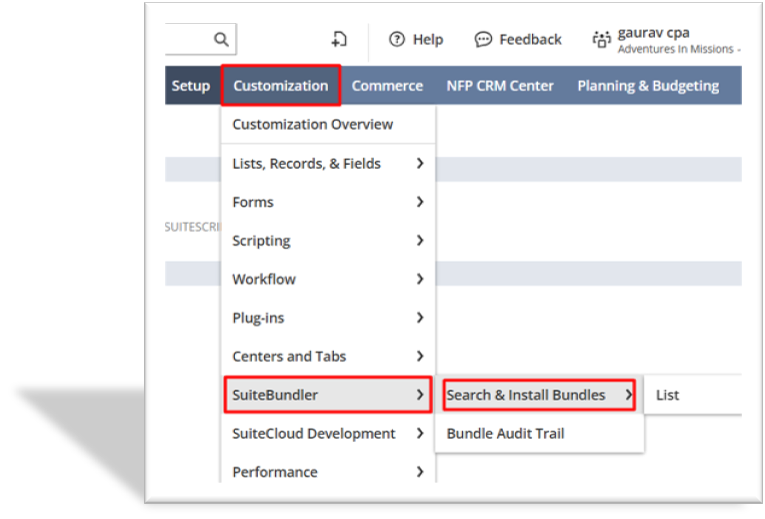
- Go to Customization > SuiteBundler > Search & Install Bundles.
- Search “Fixed Assets Management.”
- Locate and install Bundle ID 464363; this is the official Oracle NetSuite FAM SuiteApp, not a third-party bundle.
Do not install third-party FAM bundles unless specifically advised to by your NetSuite partner. They do not integrate with the native GL in the same way.
Step 3: Configure GL Accounts for Asset Types
What this does: Map the correct GL accounts to each asset type before creating any asset records. This is the step most DIY setups skip, and it causes depreciation journal entries to post to the wrong accounts.
How to do it:
- Go to Fixed Assets > Setup > Asset Types > New (or edit existing types).
- For each asset type, map:
- 1. Asset Account – the balance sheet account where the asset’s cost is recorded
- 2. Accumulated Depreciation Account – the contra-asset account
- 3. Depreciation Expense Account – the P&L account where depreciation posts each period
- 4. Disposal Accounts – gain/loss accounts used when the asset is retired
Get your chart of accounts in front of you before this step. If the accounts don’t exist yet, create them first in Setup > Accounting > Chart of Accounts.
Step 4: Create Individual Asset Records
What this does: Registers each fixed asset in NetSuite FAM with its cost basis, useful life, and depreciation method. This is the foundation of your asset register.
How to do it:
- Go to Fixed Assets > Lists > Assets > New.
- Complete the FAM Asset form with the following required fields:
- 1. Asset Name
- 2. Asset Type (links to the GL mapping from Step 3)
- 3. Original Cost
- 4. Residual Value
- 5. Depreciation Method
- 6. Asset Lifetime (useful life in periods)
- 7. Acquisition Date
The FAM Asset form also contains subtabs for Accounts, Maintenance, Insurance, Lease, and Asset Sales Disposal. For a complete record, fill in the Accounts subtab to confirm GL mapping and the Lease subtab if the asset is under an operating or finance lease.
Use this step for new individual assets only. If you are migrating a portfolio of existing assets, go to Step 5.
Step 5: Import Existing Asset Data via CSV
What this does: Migrates your full existing asset register into NetSuite FAM in bulk. This is the right approach for any business moving from spreadsheets, a prior ERP, or a disconnected fixed asset system.
Complete two steps before importing. Skipping one will cause the import to fail:
Prerequisite A:
- Go to Fixed Assets > Setup > System Setup.
- Under General Settings, uncheck “Run Server Scripts on CSV Imports.”
If this remains checked, NetSuite overwrites every value in your CSV with default zeroes. Your assets import with no cost basis and no depreciation history. This is the single most common import failure we fix.
Prerequisite B:
- Go to Setup > Import/Export > CSV Import Preferences.
- Verify “Run System Server Script and Trigger Workflows” is checked.
If this is unchecked, asset values will not auto-calculate after import.
Import process:
- Build your CSV file. Required columns: Asset Name, Asset Type, Original Cost, Residual Value. Additional fields (acquisition date, useful life, location) can be included or edited post-import.
- Go to Setup > Import/Export > Import CSV Records.
- Import Type: Custom Records. Record Type: FAM Asset.
- Upload your file, map columns to FAM fields, and save the field mapping for future imports.
- Click Save and Run.
After the import completes, go to Fixed Assets > Lists > Assets and verify asset count and values match your source file before proceeding.
Step 6: Configure Depreciation Methods
What this does: Defines the depreciation calculation rules NetSuite applies to each asset. The method you configure here directly determines what appears on your financial statements, so this is an accounting decision, not just a software setting.
How to do it:
- Go to Fixed Assets > Setup > Depreciation Methods.
- Review the methods already loaded in your account. For each asset type in your register, confirm the correct method is available.
- To add a new method, click New FAM Depreciation Method.
Complete the form: depreciation name, period type, final period convention. Save.
Don’t move on to Step 7 until you have set a correct depreciation method for each asset type in your register. Changing depreciation methods after you’ve posted depreciation runs will require corrections, which can lead to additional reconciliation work and audit questions.
Step 7: Configure Alternate Depreciation Schedules (GAAP/Tax Split)
What this does: Sets up a second, parallel depreciation schedule for each asset, your tax book running alongside your GAAP book. This is the most consequential step in the entire FAM configuration for US businesses.
How to do it:
- Go to Fixed Assets > Setup > Alternate Methods > New.
- Click New FAM Alternate Methods.
Complete the form with the tax-basis method and recovery period for each asset class. For US businesses, this means configuring MACRS class lives (5-year, 7-year, 15-year property, etc.) per IRS Publication 946.
Attach the alternate method to each asset record. Once attached, NetSuite runs both depreciation schedules in parallel, your GAAP book and your tax book, and reports them separately.
This step is skipped in the majority of FAM implementations we inherit. The result is always the same: a year-end reconciliation problem that the client’s tax preparer has to manually unwind.
Step 8: Configure Asset Maintenance Workflows
What this does: Links maintenance schedules to individual asset records so NetSuite triggers alerts when service is due. For manufacturers and businesses with high-value equipment, this keeps maintenance costs visible and prevents assets from being improperly depreciated after major repairs that extend useful life.
How to do it:
- Open any asset record from Fixed Assets > Lists > Assets.
- Scroll to the Maintenance subtab.
- Enter:
- 1. Maintenance Company (vendor)
- 2. Next Inspection Date
- 3. Maintenance Type: Preventive, Corrective, or Inspection
- Click Save.
NetSuite will alert the assigned user when the next maintenance date arrives.
One accounting note: If a maintenance event improves an asset and extends its useful life, you should add the cost to the asset’s value in the Fixed Asset Management (FAM) system instead of expensing it. This is important for accounting standards (GAAP) and tax purposes. Be sure to notify your accountant about these events before posting.
Depreciation Methods We Set Up in NetSuite
The selection of a depreciation method is an accounting decision with tax consequences. The wrong method for the wrong asset class can lead to misstated financials, a book-to-tax mismatch, or both. We make this call based on the asset class, industry, and whether the client is optimizing for GAAP accuracy, tax minimization, or both.
Here are the five methods available in NetSuite FAM and the logic we apply to each:
Method 1: Straight-Line (SL)
Equal depreciation every period over the asset’s useful life. This is our default GAAP-book method for most asset classes, facilities, leasehold improvements, furniture, fixtures. Predictable, auditor-friendly, and easy to explain to lenders and investors. If a client has no specific reason to use an accelerated method for a particular asset class, we configure SL.
Method 2: Double Declining Balance (DDB)
Front-loads depreciation in the early years, then tapers off toward the end of life. We use this for assets that lose economic value quickly, such as computing equipment, certain vehicles, and technology infrastructure.
It reduces taxable income in early years but requires active monitoring: DDB transitions to straight-line at a specific crossover point, and if NetSuite isn’t configured to handle that transition correctly, the schedule breaks.
Method 3: Sum of Years' Digits (SYD)
Accelerated, but less aggressive than DDB. Produces a smoother depreciation curve over the asset’s life. We use this selectively, typically for manufacturing equipment where the client wants front-loaded depreciation, but DDB produces too sharp a drop-off in later periods for their financial reporting purposes.
Method 4: Units of Production
Depreciation tied to actual usage, machine hours, units produced, miles driven, rather than time. The right choice for production machinery with highly variable utilization.
A piece of equipment that ran 4,000 hours this year and 1,200 hours last year should not be depreciated equally across those two periods. Requires reliable usage data fed into NetSuite each period; if the client can’t provide that consistently, we configure SL instead.
Method 5: MACRS (Modified Accelerated Cost Recovery System)
The IRS requires businesses to use MACRS for federal tax returns. MACRS assigns recovery periods based on asset types: 5-year property includes computers and vehicles; 7-year property covers most equipment and furniture; 15-year property is for land improvements; and 39-year property is for commercial real estate. This method is not your GAAP method; it is your tax-book method. All US businesses with depreciable assets must set up MACRS in FAM. Otherwise, your tax return depreciation may be incorrect or calculated manually.
How we decide what to configure:
The main accounting method we usually use is Straight-Line depreciation. The only exception is if a client’s CPA specifically advises using an accelerated method for a certain type of asset. In that case, we need their approval.
For U.S. clients, we always use MACRS for tax purposes. Key decisions for MACRS include determining which property class each asset belongs to, deciding whether bonus depreciation applies (such as Section 179 or 100% first-year expensing), and choosing the convention to use (half-year, mid-quarter, or mid-month). These are not just software settings; they are tax choices that must be made before we set anything up in NetSuite.
If these choices have not yet been made, we pause the setup process and consult the client’s CPA before moving forward. Misconfiguring MACRS and running a full year of depreciation is much more complicated to correct than taking two days to ensure we make the right choices from the start.
Use our depreciation calculator to model the impact of different methods on your asset values before we lock in the configuration.
GAAP vs. Tax Depreciation: Why Your Books Need to Be Set Up Differently
Your financial statements follow GAAP. Your tax return follows IRS rules. These two frameworks produce different depreciation numbers for the same asset, and NetSuite needs to run both simultaneously.
A practical example: a $100,000 piece of manufacturing equipment. Under Straight-Line GAAP over 10 years, $10,000 per year. Under MACRS (7-year property), $14,290 in Year 1, $24,490 in Year 2. Fully depreciated by Year 8 under IRS tables, two years before your GAAP book closes it out.
If you’re running a single depreciation schedule in NetSuite, your financial statements and tax return diverge each period.
We see two failure patterns consistently: clients running GAAP-only and reconciling manually at tax time, and clients running MACRS as their only schedule and filing financial statements with IRS-method depreciation. Both are wrong. Both are fixable through the Alternate Methods setup covered in Step 7.
For a deeper explanation of how depreciation flows through your balance sheet, see our guide on accumulated depreciation vs depreciation expense.
Asset Disposal and Retirement: What Needs to Happen in NetSuite
When you sell, scrap, or write off an asset in your business, you must formally retire it in NetSuite FAM. This does not happen automatically.
If you don’t properly dispose of assets, they will stay on your balance sheet. Depreciation might continue, which can make your net book value appear higher than your actual assets. During an audit, having unexplained assets can cause issues.
The disposal workflow:
Open the asset record:
- Fixed Assets > Lists > Assets.
- Navigate to the Asset Sales Disposal subtab.
- Select the disposal type:
- 1. Write-off: An asset has no remaining value and is considered scrapped, lost, or worthless. In NetSuite, we reduce accumulated depreciation and credit the asset’s cost account. Any leftover value is recorded as a loss.
- 2. Sale: When selling an asset, NetSuite compares its net book value to the proceeds. A gain increases income, while a loss is an expense.
- 3. Trade-in: An asset can be exchanged for a new one, retiring the old asset and adjusting the new asset’s cost based on the trade-in value.
Enter the disposal date, proceeds if applicable, and GL accounts. Save. NetSuite generates all required journal entries automatically.
Two things we enforce with every client:
First, disposals must be recorded in the period they occur. Backdating into a closed period creates reconciliation problems and raises audit questions about when management knew the asset was gone.
Second, fully depreciated assets are not automatically retired. A $0 net book value asset still sits on your balance sheet and still appears in your asset register. We build a quarterly review process into every FAM engagement, identify fully depreciated assets no longer in use and formally retire them before they accumulate into an audit flag.
The FAM Reports Your Finance Team Should Be Running
Most finance teams use one FAM report, usually the Asset Summary, and leave the rest untouched. Here are the four reports we configure and review with every client, and what each one is actually for.
1. Asset Summary Report
Total asset cost, accumulated depreciation, and net book value by asset class. This is your balance sheet reconciliation tool; the net book value total here must match your fixed assets line exactly.
Run it at every month-end close. If it doesn’t reconcile, you have a configuration or posting problem that needs to be resolved before the period closes.
2. Depreciation Forecast Report
Projected depreciation expense by period across all active assets. Use this for budget planning and capital expenditure decisions. Before committing to a new asset purchase, add it to FAM and run this report to see the full depreciation impact on future periods.
3. Asset Register
Complete list of all assets, name, type, location, acquisition date, cost, and net book value. Your primary tool for physical audits and insurance valuations. Your insurance carrier should be reviewing a version of this at every renewal.
4. Gain/Loss on Disposal Report
All disposal activity by period with gain or loss recognized. Pull this at year-end; your CPA needs it to reconcile book gains and losses against tax-basis figures.
Access all four at Fixed Assets > Reports.
5 FAM Configuration Mistakes We Fix for New Clients
These are the five issues we encounter most frequently when a new client brings us their existing NetSuite FAM setup.
Mistake 1: Running server scripts on CSV imports
When migrating existing assets via CSV, the “Run Server Scripts on CSV Imports” checkbox in System Setup must be unchecked. If it’s left checked, NetSuite overwrites your CSV values with default zeroes, wiping out historical cost and accumulated depreciation data. The assets import but with no cost basis and no depreciation history. We’ve seen this happen on imports of 300+ assets, requiring a full reimport and revalidation.
Mistake 2: No GAAP/tax book split
Covered in detail above. Running a single depreciation schedule creates a permanent divergence between your financial statements and your tax return. The fix, setting up alternate methods, takes a few hours to configure properly. Not fixing it costs far more at year-end when your CPA has to manually calculate the book-to-tax difference for every asset class.
Mistake 3: Wrong depreciation start date convention
NetSuite FAM supports multiple period conventions: half-year, mid-month, mid-quarter. The IRS requires specific conventions by asset class under MACRS. We regularly see setups where the convention was left at the software default rather than set to match IRS requirements. The result is a depreciation schedule that’s slightly off every single period, creating a cumulative mismatch that compounds over the asset’s life.
Mistake 4: No asset transfer accounts configured for multi-subsidiary organizations
If your business has multiple subsidiaries and assets move between them, equipment transferred from one entity to another, for example, NetSuite FAM requires Asset Transfer Accounts to be set up per subsidiary. Without them, inter-subsidiary transfers either fail or create unbalanced GL entries. This is a setup step that’s easy to skip if you’re not running multi-entity, but critical if you are.
Mistake 5: Fully depreciated assets never formally retired
This is less a configuration mistake and more a process failure, but it shows up in the configuration because no disposal workflow was ever established. We routinely find clients with dozens of fully depreciated assets still on their balance sheet, still appearing in the asset register, some of which haven’t been physically present in the business for years. The fix is a one-time cleanup plus a quarterly retirement review process going forward.
FAQs
1.What is NetSuite FAM?
NetSuite FAM (Fixed Assets Management) is a SuiteApp that manages the complete lifecycle of fixed assets within NetSuite ERP, covering acquisition, depreciation, transfer, maintenance, and disposal. It is installed separately via the SuiteApp marketplace (Bundle ID 464363) and integrates directly with the NetSuite general ledger.
2. What depreciation methods does NetSuite FAM support?
NetSuite FAM supports Straight-Line (SL), Double Declining Balance (DDB), Sum of Years’ Digits (SYD), Units of Production, and MACRS for US tax reporting. Custom depreciation methods can also be configured for specific asset classes or regulatory requirements.
3. How do I dispose of a fixed asset in NetSuite?
Open the asset record, navigate to the Asset Sales Disposal subtab, select the disposal type (write-off, sale, or trade-in), enter the disposal date and any sale proceeds, and save. NetSuite automatically generates the required journal entries, debiting accumulated depreciation, crediting the asset cost account, and booking any gain or loss to the income statement.
4. Do I need a separate tax depreciation schedule in NetSuite?
Yes, if you file US tax returns. Your GAAP book uses one depreciation method (typically Straight-Line) while your tax book follows MACRS rules. NetSuite FAM handles this through the Alternate Methods feature, which runs a second depreciation schedule in parallel to your primary one. Without this split, your financial statements and tax return will diverge, and the difference compounds every year.
5. What is the difference between NetSuite FAM and standard NetSuite asset tracking?
Standard NetSuite records asset details but does not automate depreciation calculations, GL entries, or disposal workflows. NetSuite FAM is a dedicated SuiteApp that adds full depreciation automation, dual-book support, maintenance tracking, disposal workflows, and compliance reporting on top of core NetSuite and is purpose-built for businesses with significant fixed asset bases.