

Businesses processing invoices manually spend an average of 15-20 minutes per invoice, while automated systems handle the same task in under 3 minutes.
With AI-powered tools now built directly into Odoo, automating your invoicing isn’t just possible, it’s practical, affordable, and surprisingly easy to implement.
This guide walks you through everything you need to know about setting up invoice and bookkeeping automation in Odoo, from basic sales invoices to advanced vendor bill processing.
Let’s get started.
Key Takeaways
- Invoice automation in Odoo isn’t just “faster invoicing”—it links sales orders, payments, vendor bills, and bank feeds into one continuous flow where invoices are generated, sent, matched, and reconciled with minimal human input.
- AI-powered OCR is the real time-saver for vendor bills. Once Odoo has seen a few invoices from the same supplier, it effectively “learns” that layout, cutting manual entry by up to 90% for future bills.
- The biggest ROI often comes from workflow automation, not just data cleaning and capture. Approval routing, exception handling, and automated reminders eliminate the email back-and-forth that usually slows AP and AR to a crawl.
- Odoo’s pay-per-scan OCR model makes automation scalable. At roughly $0.10 per invoice, even a few hundred bills a month cost less than a few hours of manual data entry from your accounting team.
- The real question isn’t whether Odoo can automate invoices—it’s how long you can afford to keep doing it manually. For teams spending 5+ hours a week on invoicing tasks, even a basic implementation usually pays for itself within months.
What is Odoo Invoice Automation?
Odoo invoice automation is the process of using Odoo’s built-in features and AI capabilities to automatically create, send, process, and track invoices without manual data entry.
Instead of typing information from purchase orders or sales documents into invoice forms, the system handles it for you – including extracting data, matching transactions, and even learning from your corrections over time.
What automation actually does:
- Automatically generates invoices from sales orders the moment payment is confirmed
- Scans vendor bills using OCR technology and auto-fills invoice fields
- Matches invoices to purchase orders and receipts (three-way matching)
- Routes invoices through approval workflows based on your business rules
- Sends payment reminders automatically when invoices become overdue
- Reconciles payments with bank transactions using AI-powered matching
Who benefits most? Small businesses processing 50+ invoices monthly, accounting firms managing multiple clients, e-commerce businesses with high transaction volumes, and finance teams drowning in vendor bills all see immediate time savings.
If you’re spending more than 5 hours per week on invoice-related tasks, automating your Odoo accounting workflows will deliver measurable ROI.
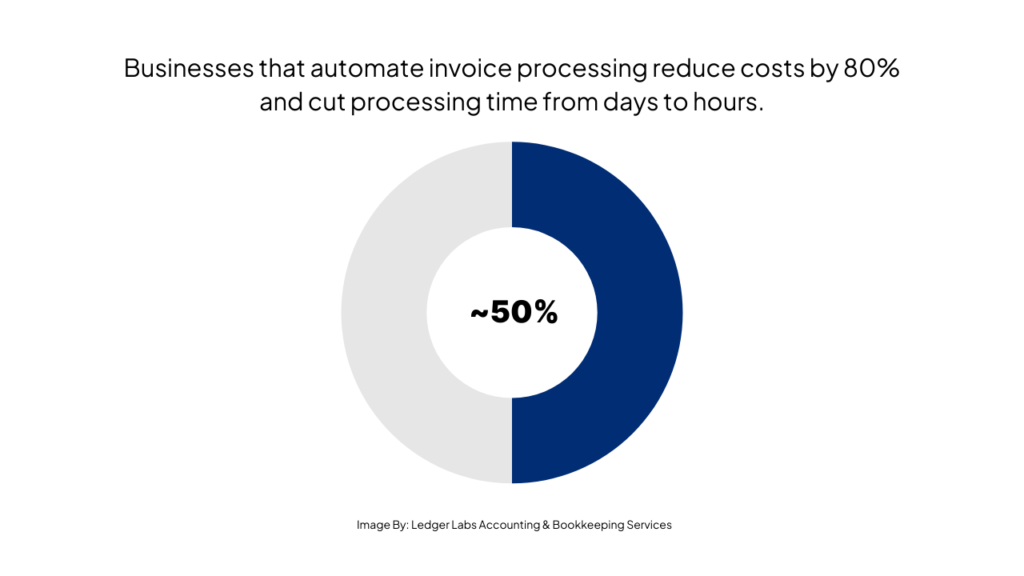
Businesses that automate invoice processing reduce costs by 80% and cut processing time from days to hours.
Odoo invoice automation eliminates repetitive data entry, reduces errors by up to 90%, and frees your accounting team to focus on financial analysis instead of paperwork. The technology exists, it’s already integrated into Odoo, and setup can take as little as a few hours, depending on your needs.
Types of Invoice Automation Available in Odoo
Not all invoice automation is created equal, and Odoo offers several distinct types depending on whether you’re billing customers or processing vendor bills.
Understanding these categories helps you prioritize which automation to implement first based on your biggest pain points.
1. Sales Invoice Automation (Customer Invoicing)
This is where most businesses start because the ROI is immediate and obvious.
Odoo sales invoice automation automatically generates customer invoices triggered by specific events in your workflow.
When a customer completes checkout on your e-commerce site, Odoo creates and sends the invoice instantly.
For subscription-based services, you set up recurring invoices that generate monthly, quarterly, or annually without any manual intervention. If you require signed quotes before work begins, payment-triggered invoicing creates the invoice automatically once the customer signs and pays.
Configuration requirements vary: Community Edition handles basic automatic invoice generation from sales orders at no cost. Enterprise Edition adds recurring invoice scheduling, advanced workflow rules, and integration with payment processors like Stripe and PayPal. You’ll need to configure your invoicing policy (bill for ordered quantities vs. delivered quantities) during setup.
2. Vendor Bill Automation (Accounts Payable)
This is where AI-powered OCR technology shines. Odoo customer invoice automation for vendor bills saves accounting teams the most time because supplier invoices arrive in dozens of different formats – PDFs, scanned images, even photos taken with phones.
AI-powered OCR scans incoming supplier invoices and extracts key data: vendor name, invoice number, date, line items, amounts, and tax details. Email-to-invoice processing lets you forward bills to a dedicated Odoo email address (bills@yourcompany.odoo.com), and the system processes them automatically.
Three-way matching compares your purchase order, receipt confirmation, and vendor invoice to flag discrepancies before approval.
Important pricing note: OCR processing costs $0.10 per scan through Odoo’s In-App Purchase (IAP) credits. For 300 invoices monthly, that’s $30—far less than the labor cost of manual processing.
3. Invoice Workflow Automation
Beyond just creating invoices, you can automate the entire lifecycle.
Approval routing sends invoices to the right people based on amount thresholds or departments.
Payment reminder automation detects overdue invoices and sends escalating email reminders without your intervention. Bank reconciliation integration matches incoming payments to open invoices automatically using AI pattern recognition.
Exception handling processes flag invoices that don’t match purchase orders or fall outside normal parameters for manual review.
AI-Powered OCR Invoice Scanning: How It Works
With these automation types in mind, let’s take a closer look at how the AI-powered OCR technology actually works behind the scenes.
You’re probably wondering: Can software really read my vendor invoices accurately enough to trust? The answer depends on understanding how Odoo invoice matching technology processes documents and learns from your corrections.
The OCR Process: 4 Steps from Upload to Validated Invoice
Step 1: Document Upload or Email Reception – You upload a PDF or image file directly in Odoo, forward it to your dedicated email address, or scan it using Odoo’s mobile app. The system accepts PDFs, JPGs, and PNGs.
Step 2: OCR Text Extraction – Odoo’s Optical Character Recognition engine converts the image into machine-readable text. It looks first for embedded metadata like Swiss QR codes or French Factur-X formats, which provide structured data and improve accuracy.
Step 3: AI Field Mapping with Vendor Templates – Here’s where it gets smart. The AI identifies which extracted text corresponds to which invoice fields: vendor name, invoice number, date, line items, quantities, prices, taxes, and total amount. After you process a few invoices from the same vendor and make corrections, Odoo creates a custom template for that vendor’s layout. Future invoices from that vendor process with near-perfect accuracy.
Step 4: Human Validation Review – Odoo presents the extracted data in draft form. Fields with low confidence scores are highlighted for your review. You correct any errors, click validate, and the system learns from your changes.
Step-by-Step: Setting Up Automatic Invoice Generation from Sales Orders
Understanding how the technology works is helpful, but you’re probably ready to see how to actually set it up, so let’s walk through the configuration process step by step.
Here’s the scenario: every time a customer places an order and completes payment, you want Odoo to automatically create and send the invoice without any manual intervention.
This is Odoo automatic invoice generation at its most practical, and it’s easier to configure than you might think.
Prerequisites & Configuration (8 Essential Steps)
Step 1: Navigate to Settings → Sales → Invoicing and enable the “Automatic Invoice” option. This is the master switch that allows invoice creation upon payment confirmation.
Step 2: Configure your invoicing policy under the same settings menu. You’ll choose between “Invoice what is ordered” (creates invoice based on sales order quantities) or “Invoice what is delivered” (waits for delivery confirmation). For digital products or services, choose “ordered.” For physical goods, “delivered” prevents billing for items you haven’t shipped yet.
Step 3: Set up payment providers by going to Settings → Payment Providers. Add and configure at least one payment gateway (Stripe, PayPal, Authorize.net, etc.). Each provider requires API credentials from your account with them.
Step 4: Enable online signature if your workflow requires signed quotes before payment. Go to Settings → Sales → Quotations & Orders and check “Online Signature.” Customers must sign digitally before the “Pay” button appears.
Step 5: Create or customize your invoice template under Settings → General Settings → Business Documents. Choose from four preset layouts or create a custom design. Your logo, company details, and payment terms should all be configured here.
Step 6: Configure email automation by editing the invoice email template under Settings → Technical → Email Templates (you’ll need developer mode enabled). Set up automatic sending rules, customize the message, and add payment links.
Step 7: Test with a sample order. Create a test quotation, send it to yourself, sign it (if required), and complete a test payment. Verify the invoice generates automatically and appears in Accounting → Customers → Invoices.
Step 8: Monitor your first 10 invoices for accuracy. Check that amounts, tax calculations, line items, and customer details populate correctly. Adjust templates or settings as needed before rolling out to all customers.
Cost Analysis: Is Odoo Invoice Automation Worth It?
You’ve seen what automation can do, but you’re probably wondering: what does this actually cost, and is it worth the investment?
Let’s talk money.
What You'll Actually Pay
- Community Edition provides free basic features if you’re willing to handle setup yourself. You get automatic invoice generation from sales orders, basic workflow rules, and manual vendor bill entry—no AI scanning, no advanced automation. Implementation cost: your time plus potential consulting for complex configurations.
- Enterprise Edition costs $31.10 per user per month (as of 2025 pricing) and includes the automation features most businesses actually want: recurring invoice scheduling, advanced approval workflows, payment provider integrations, and access to Odoo Studio for custom modifications. Annual commitment required.
- OCR/AI Scanning operates on a pay-per-use model through Odoo’s In-App Purchase (IAP) credits at $0.10 per invoice scanned. Process 300 vendor bills monthly? That’s $30/month or $360 annually. Process 1,000? That’s $100/month. The cost scales directly with usage—there’s no unlimited plan.
- Implementation costs vary wildly. DIY setup using Odoo’s documentation and community forums: free but time-intensive (40-60 hours for a complete accounting setup). Hiring an Odoo implementation partner: $2,000-$10,000 depending on complexity, integrations, and customization needs. Contact Odoo-certified consultants for quotes specific to your business.
Advanced Automation: Bank Reconciliation & Payment Reminders
Creating invoices faster is valuable, but what really closes the cash flow loop is knowing when customers pay and having your accounts reconciled automatically.
Odoo bank reconciliation automation takes the final manual steps out of your accounting workflow and turns payment tracking into a set-it-and-forget-it process.
Automatic Bank Reconciliation
Your bank transactions import automatically, daily, weekly, or in real-time, depending on your bank’s API support.
Odoo’s AI analyzes each transaction and suggests matches to open invoices, bills, or expense records based on amount, date proximity, and historical patterns.
Here’s what happens:
You connect your bank account under Settings → Accounting → Bank Accounts → Add Account.
Most banks support direct feeds through Plaid or Salt Edge integrations.
Once connected, new transactions appear in Accounting → Dashboard → Bank Reconciliation widget.
The AI pre-matches obvious transactions—exact amount matches, recurring payments, known vendors—and flags uncertain matches for your review. You simply click “Validate” on suggested matches or manually match the handful of transactions the AI couldn’t figure out.
- Bank feed integration setup takes 15-30 minutes per account. You’ll need online banking credentials and may need to authorize Odoo’s third-party banking partner (Plaid in the US, Yodlee in Europe) to access read-only transaction data. Security concerns? These integrations use OAuth authentication and never store your banking password—review Odoo’s security documentation for details.
- Handling unmatched transactions is where you’ll spend most of your reconciliation time. Transactions without invoice matches might be bank fees, interest payments, customer payments without invoice references, or vendor bills not yet entered in Odoo. Create rules to automatically categorize recurring items: “Monthly Bank Fee – $25” → Expense Account 6100. After a few months, 80-90% of transactions reconcile automatically.
- Reconciliation rules configuration under Settings → Accounting → Reconciliation Models lets you define patterns. “If transaction description contains ‘STRIPE’ and amount matches an open invoice within 2%, automatically match and mark paid.” These rules handle payment processors that don’t pass through invoice numbers.
- Smart Payment Reminders: Your biggest accounts receivable problem probably isn’t creating invoices—it’s getting customers to pay them on time. Odoo invoice tracking includes automatic overdue detection and escalating reminder sequences that run without your intervention.
- Automatic overdue invoice detection happens daily. Odoo checks every customer invoice against its due date. Overdue invoices trigger follow-up actions based on rules you define under Settings → Accounting → Follow-up Levels.
- Email reminder sequence setup lets you create escalating communications: Day 1 overdue sends a friendly reminder email. Day 15 overdue sends a firmer message with late payment terms. Day 30 overdue sends a final notice before collections. Each level has customizable email templates, and Odoo tracks which reminders were sent to whom.
- Customer portal payment links in reminder emails let customers pay directly from the email without logging in. They click “Pay Now,” see the invoice detail, choose their payment method, and complete payment—all tracked automatically in Odoo. Friction-free payment processes reduce days sales outstanding (DSO) significantly.
- Escalation workflows can involve your team automatically. Configure rules like “If invoice remains unpaid 45 days after final reminder, create task for collections manager” or “If customer has 3+ overdue invoices totaling $10,000+, send alert to CFO.” You define the thresholds and actions.
Conclusion
Manual invoicing is one of the most expensive habits in a finance team – not just in money, but in time, accuracy, and opportunity cost. Odoo’s invoice automation turns that entire process into a structured, predictable workflow where AI does the heavy lifting and humans only handle exceptions.
By combining automatic invoice generation from sales orders, AI-powered OCR for vendor bills, smart approval routing, bank reconciliation rules, and automated payment reminders, you’re not just “going paperless.” You’re building a system that scales without adding headcount, keeps your books cleaner, and brings cash in faster.
If your team is still spending hours every week keying in invoices or chasing late payments, the bottleneck is no longer the technology—it’s the decision to keep doing things manually. Configure automation once, monitor the first few cycles carefully, and then let Odoo handle the repetitive work while you focus on pricing, margins, and strategy instead of data entry.
And what better way to do that than to book a call with our ERP experts at Ledger Labs?