
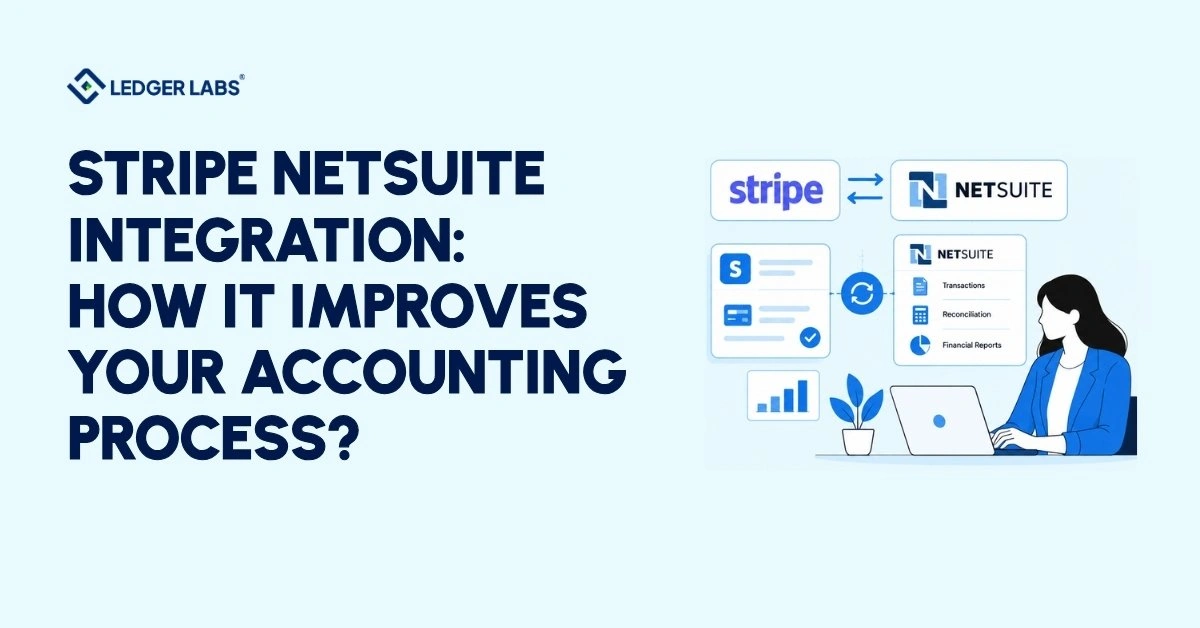
A Stripe NetSuite integration streamlines your accounting by turning each payment, refund, and fee into records in NetSuite, creating one deposit for every payout. You can reconcile records instead of relying on exports, provided finance approves the account mapping first.
Month-end issues often arise. Stripe shows total sales, your bank shows one net deposit, and NetSuite shows whatever someone posted. Someone must match each payout to the sales, fees, and refunds. A missed fee or refund will remain in your records until discovered.
Stripe’s connector addresses this but requires finance to decide on the account mapping, fee account, and who handles the monthly check. At Ledger Labs, we begin our NetSuite accounting services with the bank deposit and work backward through the payout, ensuring decisions are verified before going live.
By making these decisions early, you reduce manual matching at month-end, clearly see your fees, and ensure timely recording of reversals. Each exception has an owner before the period closes. Start by identifying how the integration impacts your daily accounting work.
- Each Stripe payout becomes one NetSuite deposit, so you match one bank line to the payments, fees, and refunds inside it.
- Fees post as separate deposit lines to expense accounts you choose, so processing costs stop hiding inside net sales.
- Refunds and disputes create credit memos and customer refunds, but you must map the accounts they land in first.
- Choose the connector for high volume, several currencies, or several entities; keep manual journals for low volume and spare review time.
- Turn on automatic payouts before go-live, or every payment, refund, and dispute stays in Undeposited Funds for manual matching.
- Name one finance owner for the monthly check and failed payout syncs, because an unowned check is the one people skip.
What does a Stripe NetSuite integration post to your books?
This system removes the need to manually enter and match exports with NetSuite records. The connector automatically creates customer payments, applies them to invoices, processes refunds, and generates one bank deposit per payout, including fees. NetSuite is your main record-keeping system, so finance can reconcile records instead of relying on exports.
Without this system, finance faces the risk of errors. Each payment, refund, and fee from a Stripe export has to be entered manually, which can lead to mistakes that remain undetected until the month-end review.
Stripe collects the payments while NetSuite keeps track of invoices, the general ledger, and bank balances. The Stripe Connector for NetSuite connects the two systems, and it was previously called SuiteSync.
A key detail for reconciliation is that a charge in NetSuite represents the payment amount, not what Stripe deposits in your bank. Fees and currency conversions are on the deposit record, so you match the deposit to your bank statement rather than the charge.
Benefits for your accounting team include:
- Less retyping: No need to re-enter payments, refunds, or invoices already in Stripe.
- Fees on the deposit: Processing fees appear separately in your expense accounts, making them easier to track.
- One bank line, one record: Each payout turns into one deposit that you can match to the bank statement.
These benefits depend on the accounts and settings approved by finance, which is why this guide focuses on those decisions. You will notice changes first when matching against the bank.
How does integrating Stripe with NetSuite reduce payout reconciliation to one bank match?
When you receive a payment, it goes into NetSuite first. Next, the payout creates a single deposit that includes payments, refunds, disputes, and fees. You match one line from your bank to one record in NetSuite, only checking the details when they don’t match.
Without integration, your closing process relies on one person’s spreadsheet of Stripe exports. With integration, the NetSuite deposit provides proof.
According to Stripe’s deposit automation guide, the connector places payments and refunds into Undeposited Funds and then creates the deposit when the payout arrives. It checks that the deposit’s total and date match, adding a memo if they don’t.
Here’s how this works: Suppose a payout includes $10,000 in payments, a $200 refund, and $300 in fees. Your bank shows $9,500. In NetSuite, you would see one $9,500 deposit with payments, a refund, and fees listed separately. Without integration, you’d manually calculate that $9,500 from a Stripe export.
Start your NetSuite bank reconciliation by looking at the bank deposit. Compare it to the NetSuite deposit, then compare the contents of the deposit with Stripe’s payout report. Identify the first record that is missing or duplicated, and resolve that issue first. Also, ensure that Undeposited Funds only contains payments that Stripe hasn’t yet paid out.
Be cautious of charges without invoices. These credits are accounts receivable without corresponding debits, so finance must create a journal entry or an invoice before the period ends.
Reconcile last month’s payout in this way and keep the result as your baseline.
Matching the deposit confirms the totals. The details such as fees, refunds, and disputes can hide surprises.
How does the Stripe NetSuite connector record fees, refunds, and disputes?
Every transaction is recorded separately. Fees appear as distinct deposits in your chosen expense accounts. Refunds result in a credit memo and a customer refund, while disputes remove the payment and add a fee. Winning a dispute will return both amounts in a later deposit.
Reversals happen after the sale, so you may overlook them if you enter them manually. The integration captures reversals automatically but can’t select accounts for you, which is crucial: a failed refund with no assigned account defaults to income.
Here’s how each case works, according to Stripe’s payouts, refunds, and disputes documentation:
- Fees: Most fees go into the Payment Fees category by default, but you can change this in Accounts mapping. Check this account monthly for any unexpected fees.
- Refunds: The system can’t specify which item a partial refund is for on a multi-item invoice. It creates a separate partial-refund item, so you need to know the income account it uses.
- Failed Refunds: If a Stripe refund fails, the system logs the reversed income in a Refund Failures account. If this account isn’t set up, the amount returns to income.
- Disputes: The system records the dispute fee, issues a customer refund, and creates a credit memo for invoiced payments. If you win the dispute, the amount and fee return on your next payout as Other Deposit lines. You can post the returned amount to accounts receivable instead of income and create your own journal entries or invoices.
Choose the accounts for failed refunds and won disputes before the first one arrives. Making decisions while a dispute is still open can lead to a won dispute ending up in the wrong place. Next, check if the connector is suitable for your payment volume.
Which Stripe NetSuite integration method fits your volume?
The connector fits teams with many payments, several currencies, or several entities. Manual journals fit low volume with spare review time, and report imports sit in the middle when one person owns the file.
| Approach | Where the work sits | Best for |
|---|---|---|
| Manual journals | Month-end entries from exports | Few payments, spare time |
| Report import | A file someone runs and checks | Steady volume, one owner |
| Connector | Account mapping and exceptions | Many payments or currencies |
If your team processes a few dozen Stripe payments each month, manual journals work well, and you can see every entry. But if your team handles thousands of payments in three currencies, manual entry becomes hard to manage. Mistakes can happen, and the monthly closing can be delayed.
Manual journals are clear but slow. Each new sale adds another line, which can have typos. Importing reports reduces typing but introduces a handoff: someone has to manage the file and check for errors.
Using a connector eliminates typing and the handoff. However, because no one reviews each entry, mistakes can occur repeatedly until someone checks. This means you’ll need to focus more on mapping and exceptions.
Here’s a simple rule: every additional payment, currency, or entity raises the cost of manual steps. No matter which method you choose, reconciliation begins with the bank deposit. What changes is how much matching you need to do manually.
Before you decide, consider these three questions:
- How many payments, refunds, and payouts do we process each month?
- How many currencies and entities are involved in those payouts?
- How many hours can the finance team spend on reviews?
If you cannot specify the review hours, choose the method that has the fewest entries to check. By selecting the connector, remember that benefits won’t come automatically; five key finance decisions will determine if they do.
What must finance settle before you integrate Stripe with NetSuite?
Finance must complete five tasks before go-live: set up automatic payouts, approve account mapping, establish a clear start date, define a cut-off rule, and assign someone to handle failed payouts. Missing any of these will cause issues like unmatched deposits, incorrect refunds, or unnoticed failed payouts.
Settle them in this order:
- Automatic payouts: If you use manual payouts, automatic deposits won’t work. Every payment, refund, and dispute will remain in Undeposited Funds, requiring your team to match them manually.
- Account mapping: Finance must select the income, fee, refund, and bank accounts for each record. If a refund fails and has no mapped account, it defaults to income. Each payout currency needs a separate NetSuite bank account. Review the first payout carefully.
- Start date: The connector tracks transactions from the record sync start date. Your team must handle any earlier transactions manually. Pick a start date close to a period boundary.
- Cut-off rule: A payout can extend beyond a period end. Decide which period will receive the deposit and how much will be accrued.
- Owner for failed syncs: If a payout fails validation, it won’t sync, and your administrators will be notified by email. Designate a specific finance team member to receive these emails.
Ask your implementation partner about the enabled optional settings. These include summarizing past transactions, using one global item for refunds or dispute credit memos, and allowing duplicate invoice payments. Each change affects where revenue, credit memos, or receivables are assigned, and finance must approve them first.
List the five decisions on one page and have finance and the person setting up the connector sign it before the first payout sync. Then decide who will test the changes.
When does a Stripe to NetSuite integration need an accountant?
Bring in an accountant before you go live. This way, you won’t face issues like unassigned monthly payments, syncing problems, or late refunds. An administrator sets up the connector and maps the accounts, while an accountant identifies financial needs and tests to ensure the books are accurate. This approach ensures that your work starts from the records, not just the software.
There is a gap between the understanding of the software and the accounting books. The implementer knows the software, and the accountant knows the books, but no one oversees how a Stripe payment moves through NetSuite to the general ledger. Ledger Labs helps bridge this gap by connecting accounting, closing procedures, controls, and reporting. We continue to manage these processes during our ongoing work with you.
We start with three documents: your mapping sheet, last month’s Stripe payout report, and the bank statement. Each item on the balance sheet has a supporting document for clarity.
- Each charge connects to an invoice.
- The fee account holds only fees.
- Undeposited Funds contains only payments that Stripe has not yet paid out.
Ledger Labs has worked with NetSuite since 2014, serving over 200 clients. A designated Controller manages the closing process and reviews exceptions.
A technical specialist takes care of complex connector tasks, while you oversee payment releases and final approvals. We prioritize ongoing relationships with monthly check-ins after launch.
To assess potential partners, ask three essential questions and listen carefully to their responses.
- How would you reconcile our first payout? From the bank deposit, back through the payout.
- Who approves the account mapping? Finance, before the first sync.
- What do you check before go-live? Automatic payouts, the start date, the cut-off rule, and an owner for failed syncs.
Good answers start from the books, not from the software.
Conclusion
A Stripe and NetSuite integration is valuable when the finance team manages the setup. Payments, fees, and refunds are recorded as NetSuite entries, and each payout matches a bank deposit. If the finance team does not handle the mapping, fee accounts, and monthly checks, errors will occur in every record.
Before going live, manually reconcile one payout, then test a refund and a dispute in a NetSuite sandbox. If matching payouts takes too long or no one manages failed syncs, consider booking a free 30-minute consultation. Start with matching the deposit.
FAQs
1.What are the benefits of integrating Stripe with NetSuite?
The main benefits are less retyping, fees on the deposit, and one NetSuite deposit per Stripe payout that ties to your bank statement. Refunds and disputes also reach your books as credit memos and customer refunds. Finance still approves the account mapping that makes each benefit work.
2. How do you integrate Stripe with NetSuite?
An administrator or implementation partner installs Stripe’s connector and maps the accounts it posts to. Finance should approve that mapping, the fee account, and the payout setting before the first sync, then test on a small batch. Finance decisions come first; the technical steps follow.
3. How do you reconcile Stripe payouts in NetSuite?
Start from the bank deposit and work back to the payments, fees, and refunds inside the payout. The NetSuite deposit should equal the bank amount. If it doesn’t, find the first record that’s missing, doubled, or landing in another period, and clear it before the period closes.
4. How do you map Stripe fees in NetSuite?
Post fees to an expense account finance has approved, not into sales. Most fees post to a Payment fees category by default, and you can change the account under Accounts mapping. Review that account monthly for fees you didn’t expect.
5. What happens to duplicate payments?
By default, the connector doesn’t sync a second payment on a fully paid invoice, because NetSuite doesn’t allow it. Stripe’s error resolution guide says you can allow them, and they arrive as unapplied payments with a memo. Assign someone to review them.