
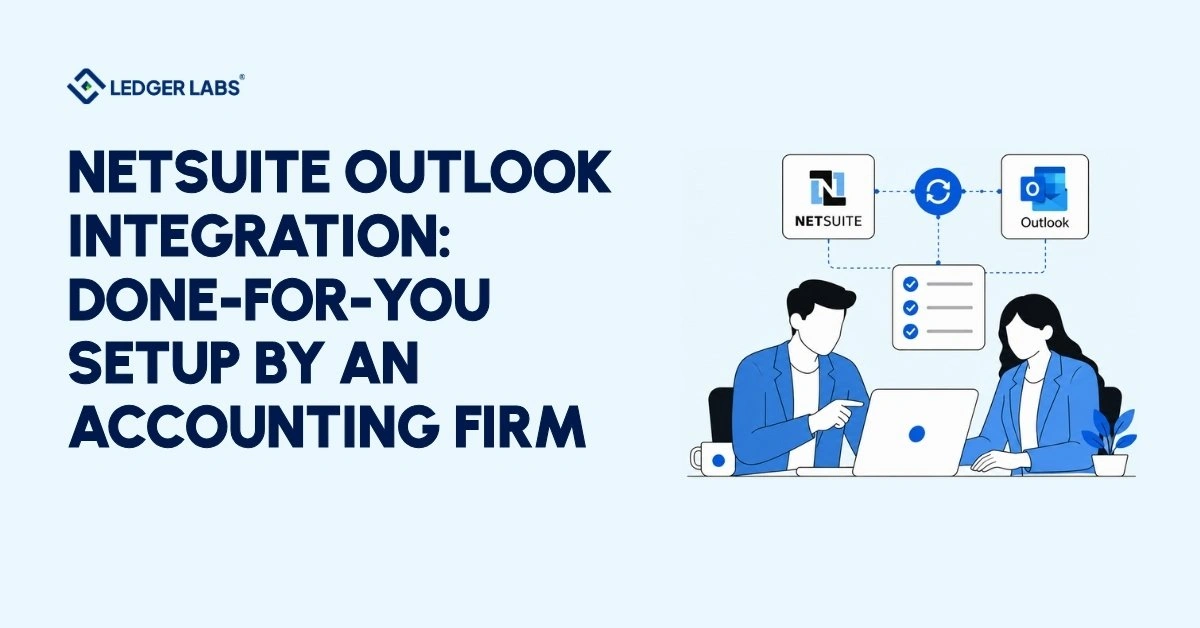
The NetSuite Outlook integration links your email and calendar directly to your NetSuite CRM records. Ledger Labs handles the entire setup.
Many teams don’t realize how much CRM data they are missing until they check. Emails can be logged late, client calls may not be recorded, and follow-ups might be missed because the activity isn’t in NetSuite. This integration aims to fix these problems, but it needs to be set up correctly from the start.
The NetSuite Connector for Outlook allows you to sync emails and calendar events from Outlook to NetSuite records for Customers, Leads, Prospects, Contacts, and Opportunities. The syncing is one-way and does not require a desktop client. Once set up properly, your team can log client communications directly from their inbox without switching apps, ensuring your CRM is up to date with what’s happening in the field.
This guide highlights key points for your team’s setup. The legacy SuiteApp is not for new installations. It covers what the connector syncs, compatibility with Microsoft 365 and Exchange, and professional setup details.
Key Takeaways
- The original NetSuite for Outlook SuiteApp is end of life; new implementations require the NetSuite Connector for Outlook via Microsoft AppSource.
- The native connector syncs emails and events one-way only, from Outlook into NetSuite. Bidirectional calendar sync requires a third-party tool.
- Token-Based Authentication is a hard requirement; the legacy username/password method is not supported by the current connector.
- The native connector requires NetSuite version 2025.1 or later; organizations on older versions need a third-party solution instead.
- Role permissions in NetSuite must be configured before deployment, missing permissions can cause silent authentication failures without a clear error message.
- Most standard implementations in a Microsoft 365 environment take one to two days when handled by a certified NetSuite implementation partner.
NetSuite for Outlook vs. NetSuite Connector for Outlook: What You Need to Know First
Before your team touches a single configuration setting, you need to know which product you’re actually working with. This distinction has derailed more than a few implementations we’ve been called in to fix.
The Legacy SuiteApp Is No Longer Available for New Installs
The original NetSuite for Outlook SuiteApp is no longer available for new installations, and Oracle has ended issue fixes and enhancements for it. Existing customers who already have it installed can continue using it; data synced with the SuiteApp remains available without interruption, but it is not receiving updates and cannot be installed in any new NetSuite account.
Oracle’s official documentation confirms this status and directs users to the current replacement: the NetSuite Connector for Outlook, or to third-party SuiteApps from Oracle SDN partners.
Which Tool Are You Actually Using?
| Feature | Legacy: NetSuite for Outlook | Current: NetSuite Connector for Outlook |
|---|---|---|
| Status | No new installs; issue fixes ended | Active, supported |
| Outlook Compatibility | Older desktop versions | Outlook desktop, Outlook Web, Microsoft 365 |
| Installation | Desktop client install | Outlook add-in via Microsoft AppSource |
| Authentication | Username/password | Token-Based Authentication (TBA) |
| Available for New Installs | No | Yes |
If your environment is running modern Outlook or Microsoft 365, you need the NetSuite Connector for Outlook. That is what the rest of this guide covers.
Third-Party Connectors: When They Make Sense
Oracle’s documentation also directs users to third-party SDN partner SuiteApps for Outlook sync; the native Connector for Outlook is the most common path, but it is not the only Oracle-sanctioned option. Third-party tools become relevant when you need advanced sync logic, custom field mapping beyond native capabilities, or simultaneous integration across multiple systems. We cover this in the methods section below.
What the NetSuite Connector for Outlook Actually Syncs
The NetSuite Connector for Outlook has two types of sync: email sync and event sync. Understanding what each type does, and does not do, will help you avoid surprises after you set up the system.
Email Sync (One-Way: From Outlook to NetSuite)
Email sync only works one way. It takes emails from Outlook and logs them in NetSuite records such as Customer, Lead, Prospect, Contact, and Opportunity. It does not send emails from NetSuite to your Outlook inbox.
Each synced email includes the subject, message body, and any selected attachments. You must manually choose the email and the NetSuite record to link it to. The connector does not automatically capture emails in the background; for that, you need third-party tools.
Event Sync (One-Way: From Outlook to NetSuite)
Event invitations you receive in Outlook can be logged to a NetSuite Customer, Lead, Prospect, Contact, or Opportunity record. The connector does not send NetSuite activities back to your Outlook calendar; it’s only one way, from Outlook to NetSuite.
Each synced event includes the date, time, status (set to Confirmed), attendee responses at the time of sync, and recurrence details. If you want a two-way calendar sync that shows NetSuite activities in your Outlook calendar, you need third-party tools like CloudExtend or SuperSync. We evaluate this need during the scoping call, and most teams find one-way logging from Outlook to NetSuite meets their needs.
What the Native Connector Does Not Sync:
- Emails from NetSuite to Outlook (one way only)
- Event attachments; event sync does not include attachments
- Events that last multiple days or end after midnight; these won’t sync to NetSuite
- Attendee responses from replying to an email invitation; only responses made within the calendar are recorded
- Contacts, tasks, or phone call records- these were features of the old SuiteApp, which is no longer available
- Financial records, invoices, or transactional data: this sync is for CRM activities only, not financial data
If you need to sync contacts or tasks, or enable two-way calendar sync, you will need a third-party tool. We evaluate the best approach for your situation during the scoping call. If the data you actually need in NetSuite is financial, such as bills, invoices and payments, that is accounting work rather than email sync, and our team handles it as part of accounting inside NetSuite. Book a free consultation before choosing a tool.
Compatibility: Outlook Versions, Microsoft 365, and Exchange
Supported Outlook Versions
The NetSuite Connector for Outlook supports Microsoft Outlook 2016 and later. Specifically:
- Outlook for Microsoft 365 (desktop and web)
- Outlook 2019
- Outlook 2016 – minimum supported version per Oracle
- Outlook on the Web (OWA)
- Outlook 2013 and earlier – not supported by the current connector; the legacy SuiteApp that covered older versions is end-of-life and unavailable for new installs
- Outlook for Mac – not confirmed in Oracle’s current documentation; verify with your NetSuite account manager before proceeding
- Free Outlook.com accounts – not supported; a paid Microsoft 365 subscription or licensed Exchange account is required
NetSuite Version Requirement
The native connector requires NetSuite 2025.1 or later. Confirm your account version under Setup → Company Information before proceeding. Organizations on older NetSuite versions cannot use the native connector and will need a third-party solution.
Does It Work with Microsoft 365?
Yes, the NetSuite Connector for Outlook is available directly through Microsoft AppSource and installs as an add-in within your Microsoft 365 environment. No desktop client installation required. Admin deployment across your organization is handled through the Microsoft 365 admin center. This is the most common configuration for organizations on M365 tenants.
Microsoft Exchange Server - What Admins Need to Know
On-premises Exchange Server deployments are supported; Oracle defers to Microsoft’s Outlook add-in mail server requirements for compatibility with specific versions. Check that page before committing to an implementation path. Exchange Online (part of Microsoft 365) is fully supported.
Hybrid Exchange environments, on-premises Exchange combined with Exchange Online, may work, depending on your configuration, but this is outside the scope of what Oracle’s documentation specifies. Confirm with your Exchange admin before proceeding.
For organization-wide deployment, your Exchange or Microsoft 365 admin will need to whitelist and deploy the connector add-in through the admin center.
If your organization is on on-premises Exchange without a Microsoft 365 overlay, confirm version compatibility before committing to any implementation path. We have seen engagements stall at this step when compatibility is assumed rather than verified; it is one of the first things we check in our scoping call.
Permission Prerequisites (For Your NetSuite Admin)
Before the connector can function, your NetSuite admin must confirm the following permissions are enabled on the user role:
- REST Web Services – Full
- SOAP Web Services – Full
- Log in using Access Tokens – Full
- User Access Tokens – Full
- Calendar, Contacts, Customers, Events, Track Messages – Edit or Create level
Missing any of these produces an authentication or sync failure with no clear error message. We configure role permissions as a dedicated step before any connector deployment.
The 3 Integration Methods - Which One Fits Your Environment
Method 1: NetSuite Connector for Outlook (Native Add-In)
Best for: Organizations on Microsoft 365 or modern Outlook who need standard email and event sync with NetSuite CRM records.
This is Oracle’s supported, native connector. It installs via Microsoft AppSource, authenticates via TBA, and covers the core email and event sync use cases without additional licensing costs beyond your existing NetSuite subscription. For most mid-market businesses we work with, this is the right starting point.
Limitation: Manual sync only, no automated background capture. Custom field mapping is constrained. Contact sync, task sync, and bidirectional calendar sync are not available. If you need any of these, a third-party tool is required.
Method 2: Third-Party Integration Tools
Best for: Organizations needing automated email capture, bidirectional calendar sync, contact sync, advanced field mapping, or multi-system orchestration.
Tools like CloudExtend, SuperSync, and Celigo sit between Outlook and NetSuite, providing a middleware layer with significantly greater capability than the native connector. Whether the added cost is justified depends entirely on your sync requirements; we assess native vs. third-party during the scoping call and recommend based on what your environment actually needs, not what a vendor is selling.
Limitation: Additional licensing cost, additional vendor relationship, additional maintenance surface.
Method 3: Custom API via SuiteTalk
Best for: Organizations with specific workflow requirements that no off-the-shelf connector meets.
SuiteTalk is NetSuite’s native web services API (REST and SOAP). A custom integration built on SuiteTalk can sync any data in any direction, trigger NetSuite workflows from Outlook activity, and map to custom fields without limitation. This is the highest-capability option.
Limitation: Requires a NetSuite implementation partner or experienced internal developer. Not a self-service option. Build and ongoing maintenance costs are significant.
What does the Setup Process Involve?
This section explains how to use the native connector, which is the most common option for organizations using Microsoft 365 or modern Outlook. If a third-party tool works better for you, follow the vendor’s instructions starting from Step 3. Remember, Steps 1 and 2 are necessary no matter which method you choose.
Step 1: Enable SuiteTalk Web Services
SuiteTalk is the NetSuite API layer that allows external applications, including the Outlook connector, to communicate with your NetSuite account. It must be enabled at the account level before any connector can function. This is a NetSuite Administrator task performed under the SuiteCloud features tab in your account settings.
Step 2: Configure Token-Based Authentication (TBA)
TBA replaces the username/password authentication used by the legacy SuiteApp. It is a hard requirement for the current connector; there is no workaround.
TBA requires creating an integration record, generating a Token ID and Token Secret, and assigning individual tokens per user. The Token ID and Secret are displayed once upon generation; they must be stored securely immediately.
A common mistake we see: Administrators generate a single TBA token using their own credentials and share it across multiple users. Each user must have their own token. Shared tokens cause sync attribution errors and make audit trails unreliable. We encounter this in roughly half of the self-implemented environments we’re called in to troubleshoot.
Step 3: Deploy the Connector Add-In
The connector installs as an Outlook add-in available through Microsoft AppSource, either individually for single users or centrally through the Microsoft 365 admin center for organization-wide rollout. Central deployment is the correct path for any team of more than two or three users. We handle deployment configuration as a standard part of every engagement.
Step 4: Authorize Credentials and Select Sync Types
Once installed, the connector panel appears within Outlook. The user connects by entering the NetSuite Account ID, Token ID, and Token Secret, then selects whether to sync emails, events, or both. The connector scans the To, From, and CC fields to identify and suggest matching NetSuite records. Field-matching decisions at this stage determine downstream data quality; this is not a step to rush.
Step 5: Configure Sync Rules
Email sync is one-way and not configurable to reverse. Event sync is also Outlook → NetSuite only with the native connector. If bidirectional calendar or contact sync is needed, a third-party tool must be evaluated before this step; retrofitting one after the native connector is deployed adds unnecessary rework. We confirm this requirement during the scoping call before any configuration begins.
Step 6: Test Before Organization-Wide Rollout
A test email to a known NetSuite contact, verified against the activity timeline in NetSuite, confirms email sync is working. A test event invitation, checked in the relevant NetSuite record, confirms event sync. Both tests should be run on a second user account before deploying to the full organization. Issues found at this stage are inexpensive to fix. Issues found after a 50-user rollout are not.
Admin Configuration: Sync Rules, User Permissions, and Access Control
Setup gets the connector running. Configuration determines whether it runs cleanly at scale across your organization. These are the decisions that separate a functioning integration from one that creates more CRM noise than it eliminates.
Setting Sync Frequency
The native connector requires users to manually sync emails or events. Users must choose which items to sync, rather than having it happen automatically in the background. If your team needs automatic logging, you should consider using a third-party tool.
When using a manual sync, it’s important to set clear team rules. Define which emails should be logged, which records they should be attached to, and who will log important communications. The success of the connector depends on how well your team follows these practices.
Role-Based Access: Controlling What Each User Can Sync
NetSuite has a role system that controls what each user can see and sync. Admins can limit sync options based on user roles. For example, sales reps can sync opportunities and contacts, whereas support staff can sync only cases. Admins can also prevent some roles from syncing sensitive records and decide which users can change sync settings versus those who must use the settings set by the admin.
It is important to complete this role configuration in NetSuite before deploying the connector to end users. Making changes after deployment can lead to data governance problems. These issues can take a lot of time to fix and be hard to explain to a client with six months of misfiled activity records.
Common Problems and How to Fix Them
Connector Not Showing Up in Outlook
Cause: The add-in may not have finished deploying, or it might be disabled by Outlook or Group Policy.
Fix: Check the Microsoft 365 admin center for the deployment status. Wait 24 hours after deployment before troubleshooting. If the add-in is deployed but not showing up, check “Manage Add-ins” in Outlook to see if it is disabled. For shared or managed devices, Group Policy settings could hide add-ins, which will need IT admin help.
Emails Not Syncing to NetSuite Records
Cause: The email address of the sender or recipient doesn’t match a NetSuite record, or the right record type isn’t selected during the sync process.
Fix: Make sure the email address in Outlook exactly matches the email on the NetSuite record, including the case of the domain. The connector looks at the To, From, and CC fields to find matching records. If you don’t see a match, the record might not exist in NetSuite or might have a different email address. Update the NetSuite record first, then try syncing again.
No Matching Records in the Connector Panel
Cause: The associated NetSuite record for that email address may not exist, or the user might not have permission to view that record type.
Fix: Confirm that the contact or customer record exists in NetSuite with a matching email address. Check the user’s NetSuite role permissions. If the role doesn’t allow access to Customers or Contacts, those records won’t appear in the connector panel. You can find information on role permissions in Section 6.
TBA Authentication Errors
Cause: The token may have expired, lack permissions, or the Account ID entered may be incorrect.
Fix: Make sure the token is active and assigned to the correct integration in NetSuite under Access Tokens. Regenerate it if it has expired. Ensure the Account ID is the numeric NetSuite account ID, not the company name or subdomain. Check that the role assigned to the token includes the necessary permissions listed in Section 3.
Event Sync Not Working
Cause: The event invitation might not have been opened or triggered manually in the connector panel, or the event might last several days or end after midnight.
Fix: Event sync in the native connector is manual. Open the event in Outlook, go to the connector panel, select the matching NetSuite record, and click sync. Events are not automatically captured. If an event spans multiple days or ends after midnight, log these as separate timed events or use a third-party tool for recurring or multi-day events.
What Is the Cost of NetSuite Outlook Integration?
Native Connector: Included in Your NetSuite License
The NetSuite Connector for Outlook comes with your NetSuite subscription if you are using version 2025.1 or later. There are no extra fees from Oracle for this native add-in. You only pay for the time it takes to configure it and any professional services needed for implementation.
Third-Party Tools
If the native connector doesn’t meet your needs, like automated email capture, two-way calendar sync, or contact sync, third-party tools may be an option. However, these tools usually have a recurring cost per user or platform. Whether this cost is worth it depends on how complex your syncing needs are. We evaluate both native and third-party options during our initial call and suggest what works best for your situation, not just what a vendor promotes.
Implementation and Configuration Costs
Even though the connector itself is free, professional help comes with a cost. This could be your team’s time or a partner’s fees.
Here are typical scenarios:
- Partner Implementation: Most standard setups in a basic Microsoft 365 and NetSuite 2025.1+ environment take 1 to 2 days of billable time.
- Third-Party Tool Implementation: Costs vary based on the chosen tool, the number of users, and the complexity of syncing.
- Complex Environments: For setups like on-premises Exchange, multiple NetSuite entities, or custom field mapping, costs are estimated individually and may not be suitable for self-implementation.
Conclusion
Setting up the NetSuite Outlook connector is straightforward when your environment is right: Microsoft 365, NetSuite 2025.1 or later, and a clear understanding of what the native connector actually does: email sync, event sync, one-direction, manual trigger.
Where implementations go wrong is in the decisions made before the first step. Choosing the native connector when bidirectional calendar or contact sync is actually required. Deploying without configuring role permissions first. Sharing TBA tokens across users. These are not edge cases; they are the standard failure pattern in self-implemented environments, and they cost significantly more to fix than to prevent.
The right method for your organization, native connector, third-party tool, or SuiteTalk custom build, depends on your environment, not on a default assumption. That determination takes 30 minutes on a scoping call, not hours of additional research.
Book a Free Scoping Call We confirm compatibility, recommend the right method, and provide a fixed-fee quote before any work begins.
FAQ
1. Does the NetSuite Outlook connector work with Microsoft 365?
Yes. The NetSuite Connector for Outlook is available on Microsoft AppSource and fully supports Microsoft 365 environments, including Outlook Web Access and the Outlook desktop client. Admin deployment across your organization is managed through the Microsoft 365 admin center.
2. What is the difference between NetSuite for Outlook and the NetSuite Connector for Outlook?
NetSuite for Outlook was the original SuiteApp, now discontinued; it is no longer available for new installations and no longer receives issue fixes. The NetSuite Connector for Outlook is the current, supported replacement, available via Microsoft AppSource. If your documentation references very old versions of Outlook or Windows, it is describing a discontinued tool.
3. Do I need Token-Based Authentication to set up the connector?
Yes. TBA is a hard requirement for the current NetSuite Connector for Outlook. The legacy username/password authentication method is not supported by the current connector. If your NetSuite environment does not have TBA enabled, that must be configured before the connector will function. We handle TBA configuration as a dedicated step in every engagement.
4. Can I sync my Outlook calendar with NetSuite bidirectionally?
Not with the native connector. The native connector syncs events one-way, from Outlook into NetSuite only. Bidirectional calendar sync, where NetSuite activities appear in your Outlook calendar, requires a third-party tool such as CloudExtend or SuperSync. We assess whether this is a genuine requirement during the scoping call before recommending a tool.
5. What Outlook versions does the connector support?
Outlook 2016, Outlook 2019, Outlook for Microsoft 365 (desktop and web), and Outlook on the Web (OWA). Outlook 2013 and earlier are not supported by the current connector. Free Outlook.com accounts are also unsupported; a paid Microsoft 365 subscription or a licensed Exchange account is required.
6. Can I log emails to NetSuite without installing the add-in?
Yes, via NetSuite’s BCC capture address. NetSuite provides a unique BCC email address per account. Emails BCC’d to that address are automatically logged against matching NetSuite records based on sender/recipient email address. This requires no add-in or TBA configuration, but it is a lightweight fallback: no event sync, no record-matching interface, and no two-way data flow. It is not a substitute for the connector in a CRM-active environment.
7. What does the scoping call cover?
We use the scoping call to confirm your NetSuite version (2025.1+ required for the native connector), your Outlook/Exchange environment, your sync requirements (email-only vs. events, whether bidirectional calendar or contact sync is needed), your user count and deployment scope, and your role permission setup. From there, we provide a fixed-fee implementation quote.