
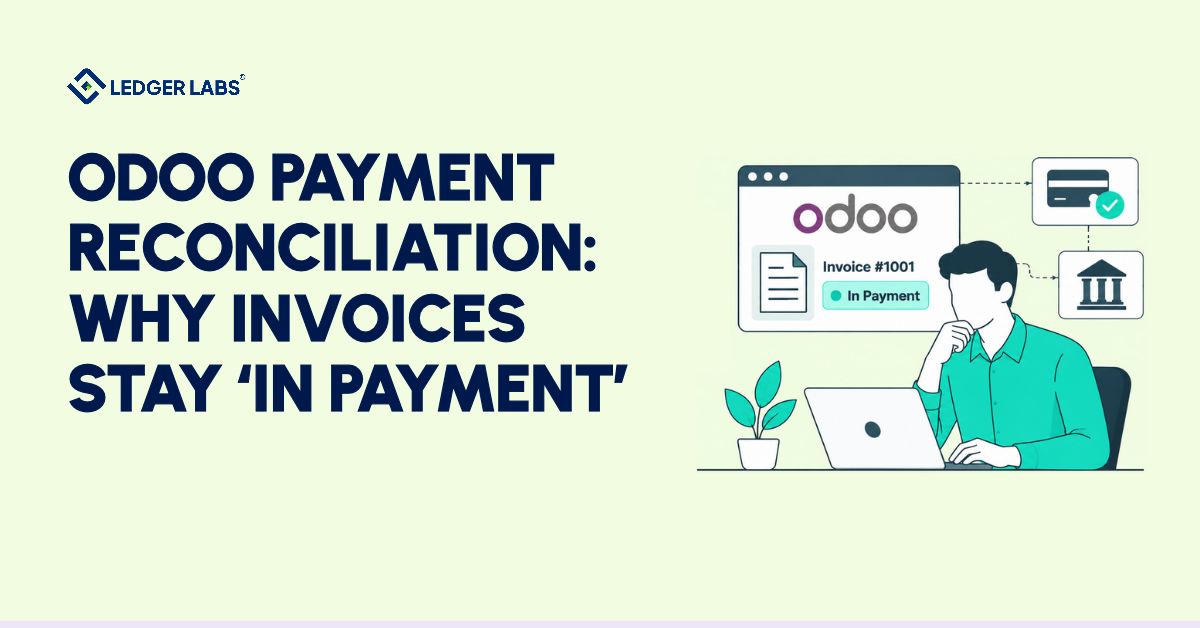
An invoice stays marked ‘In Payment’ until you link its payment to a bank transaction. This step is the second part of matching payments in Odoo. Odoo will not change the invoice to ‘Paid’ until the bank confirms the payment. This guide explains each step, what it records in your books, and which buttons to click.
When you open the customer invoice, you will see it marked ‘In Payment.’ The customer says they paid last week, and your bank feed shows the money. However, the invoice still doesn’t say ‘Paid.’ Until someone connects the payment to the invoice, your reports will show open items that should be cleared.
To resolve this, use a quick checklist. Three issues may delay the payment: the bank transaction hasn’t arrived, no one has matched it, or the amounts don’t match. Check these in order, and the invoice will be cleared.
Following this order helps clarify your month-end list. If you want us to handle the matching, our accounting and bookkeeping services cover it all. First, let’s understand why Odoo keeps the invoice.
Key Takeaways
- An invoice reads ‘In Payment’ when you have registered its payment but have not yet reconciled it with a bank transaction.
- Payment matching links a payment to its invoice, while bank reconciliation links that payment to the bank line, proving the cash arrived.
- Three causes keep an invoice stuck: the bank transaction has not arrived, nobody reconciled it, or the amounts differ.
- With outstanding accounts, registering a payment books the amount to outstanding receipts, and the bank match clears it through the suspense account.
- To clear a stuck invoice, find the bank line, reconcile it with the payment, and settle any difference on purpose.
- Bring in an accounting team when the same unmatched items carry into a second close, or nobody owns the match.
Why does an Odoo invoice stay at 'In Payment' after you register the payment?
An invoice stays at ‘In Payment’ because you registered its payment, but nobody has matched it to a bank statement line yet. Odoo treats the invoice as settled on your side while the bank hasn’t confirmed the cash. It reads ‘Paid’ after you reconcile the payment with the bank line, so a stuck invoice means a bank match is missing.
Your customer sees a settled invoice, but your books still wait for the bank to confirm it, and that gap hides until month-end.
Odoo splits one customer payment into two jobs. First, you register the payment on the invoice, and Odoo marks the invoice ‘In Payment’. Second, you reconcile that payment with a bank transaction, and Odoo marks the invoice ‘Paid’. Odoo’s documentation for versions 17, 18 and 19 describes the same sequence.
‘In Payment’ is a waiting state, not an error. It tells you the payment exists in Odoo and the bank hasn’t confirmed it yet. An accountant reads it as a control: the invoice says collected, and the bank line proves it. To see the payment behind the status, open the Payments smart button on the invoice.
‘In Payment’ means the bank still owes your books an answer.
One setting changes this. If the main bank account is the outstanding account on the journal’s payment method, a full payment moves the invoice straight to ‘Paid’. It works, but it removes the bank match as a control on that payment.
Before you touch anything, open the stuck invoice, read its status, and find the bank line behind the payment.
Do your subsidiary trial balances reconcile before you consolidate?
Payment matching connects a payment to the invoice or bill it pays. Bank reconciliation connects that payment to the line on your bank statement, showing that cash has arrived.
The first one tells you which invoice was paid, while the second one confirms if the bank received it. Odoo requires both confirmations before marking an invoice as ‘Paid.’
If you mix them up, you might end up looking for the wrong record: checking an invoice when the bank line is missing, or checking the bank when no one matched the payment. Each step has its own screen and outcome. The table displays both side by side for version 19.
| Payment Matching vs. Bank Reconciliation | ||
|---|---|---|
| Factors | Payment matching | Bank reconciliation |
| What it settles | The invoice or bill | The cash |
| Where you do it | On the invoice when you register the payment, or in the Payments Matching tool | The Bank Matching view of the bank journal |
| The evidence | The payment record in Odoo | The bank's own transaction |
| Invoice status afterwards | In Payment | Paid |
Odoo defines bank reconciliation as the process of checking bank transactions against items like customer invoices, vendor bills, and payments. You can write off transactions without a matching item, like bank fees, either manually or using a reconciliation model.
The Payments Matching tool and its Auto-Reconcile feature help match payments to invoices in groups. Invoices show ‘In Payment’ status until you reconcile their bank transactions. Together, these steps complete the Odoo payment reconciliation process. Payment matching clears the invoice, while bank reconciliation clears the cash.
First, check the status. If it says ‘In Payment’, go to the bank journal, not the payment screen.
What can keep an invoice at 'In Payment'?
An invoice stays at ‘In Payment’ when its payment doesn’t have a matched bank transaction. Three things can cause this: the transaction hasn’t arrived, it arrived but hasn’t been matched, or the amount is different from the payment. All three situations show the same status, so check them in this order to avoid mistakes.
Since the status looks the same in each case, guessing incorrectly will take you to the wrong screen. Think of it like three questions an auditor would ask: Did the cash arrive? Did someone match it? Does the amount match?
| Question | If the answer is no | Where to check |
|---|---|---|
| Did the cash arrive? | The bank journal has no line for that amount and date. A check you register in Odoo moves no money until you deposit it. | Click Fetch Transactions on the dashboard, then Find Missing Transactions. Odoo can't import pending transactions. |
| Did someone match it? | The line sits unreconciled in the bank journal. | Open the Bank Matching view. With a partner set, Odoo matches on the amount. Without one, it compares the label with invoice and payment references, so a label with no reference can miss the match. |
| Does the amount agree? | The bank amount is lower or higher than the invoice, say after a fee. | A lower amount leaves the difference open on the invoice. A higher amount leaves part of the transaction unreconciled. |
Check them in that order. You can’t reconcile a transaction that never arrived, so rule that out first. In version 19, the ‘x to reconcile’ button on the bank journal shows the unreconciled lines. For other mistakes that surface the same way, see common errors in Odoo accounting.
Rule out the missing transaction first.
Open the bank journal now and look for the line before you check anything else.
What does each step post to the books?
Each step involves a different action. When you register a payment, it transfers the amount from receivables to an outstanding receipts account. The bank transaction then appears in the bank account linked to a suspense account. During reconciliation, you swap the suspense account with outstanding receipts, clearing both holding balances.
Until the final step, the same amount stays in two holding accounts, and your trial balance shows both.
For instance, a customer pays a $1,000 invoice, and the payment method has an outstanding receipts account:
Step 1: You register the payment: Debit Outstanding Receipts, credit Accounts Receivable. The invoice reads ‘In Payment’.
Step 2: The bank line arrives: Debit Bank, credit Suspense. The invoice still reads ‘In Payment’.
Step 3: You reconcile the two: Odoo swaps Suspense for Outstanding Receipts, which clears to zero. The invoice reads ‘Paid’.
Odoo lists accounts but does not show the debit and credit sides. According to Odoo’s accounting guidelines, when a customer makes a payment, it adds money to cash and reduces accounts receivable. Outstanding Receipts acts as cash in the first step.
If there is no outstanding account, recording the payment does not create any entries. When matching, Odoo changes Suspense to Accounts Receivable.
At the end of the period, check the balances in outstanding receipts and suspense. Each balance is a step 3 that is still pending.
How do you clear an invoice that is stuck at 'In Payment'?
Find the bank statement line for the payment. Check it against the recorded payment to confirm they match. If you can’t find the line, import the statement first. If the amounts are different, record the fee or difference in the correct account before matching.
Once you confirm the match, the invoice will show as ‘Paid’. An unmatched payment from last month will lead to an unexplained balance at the end of the period.
Work through it in this order:
Step 1: Find the bank line for the payment in the bank journal.
Step2: Fetch the transaction if it’s missing
Step 3: Reconcile the line with the payment:
- Click Reconcile
- Select the payment
- Click Select.
Step 4: Confirm the invoice reads ‘Paid’.
Odoo helps with bank reconciliation by following three steps: first, it looks for an exact match; second, it checks for a discounted match if early payment terms apply; and third, it searches for the invoice amount in the transaction label.
You can set up reconciliation models to handle repeat cases, and a batch payment allows you to reconcile one bank entry against multiple checks.
If you notice a difference, handle it intentionally. If the transaction amount is less than the invoice, Odoo reconciles the full transaction and leaves the difference open on the invoice. You can choose to keep it as a partial payment or mark the invoice as fully paid.
For example, on Odoo’s bank reconciliation page, a model books a $3 bank fee against a $103 outgoing transaction and a $100 bill.
Make sure to agree on the write-off account with your accountant first.
When should you bring in an accounting team?
Bring in an accounting team when you keep seeing the same unmatched payments in your financial closes, no one takes responsibility for the review, or your bank balance doesn’t match your records. At this point, you aren’t dealing with a setting issue; you have a process problem. Fixing a process is the job of accounting.
Every time you carry over a stuck payment to the next close, you add another explanation to provide and another reason to question your cash balance.
Three signs it’s time:
- The same invoices sit at ‘In Payment’ for more than one close.
- No one owns the review.
- You can’t explain every balance in outstanding receipts and suspense.
If you find any two issues, please hand them over to the accounting firm.
We can help you by clearing your backlog, reviewing and fixing your settings to ensure correct matches, and including the ‘In Payment’ review in your month-end close.
Ledger Labs is an accounting firm that has been in business since 2014. We work with growing companies that have revenues around $50 million. We understand how Odoo statuses affect accounting records and how they should be reflected in financial statements.
Conclusions
‘In Payment’ isn’t an error. It’s a question: has the bank confirmed this cash? Once you know where to look, a stuck invoice is a short check, not a month-end mystery.
You now know what Odoo posts at each step, where each of the three causes hides, and who should own the review every close.
If unmatched payments keep following you into the next close, you don’t have to keep chasing them. Our Odoo accounting services take the matching, the clean-up, and the month-end review off your desk, and you can start with a free 30-minute consultation.
FAQs
1. What is payment reconciliation?
Payment reconciliation matches each payment you send or receive to the invoice or bill it settles, then to the bank record that shows the money moved. In Odoo, those are two steps: you match the payment to the invoice, then reconcile it with the bank transaction. Until the second step, the invoice reads ‘In Payment’.
2. How to do payment reconciliation?
List the payments for the period, match each to its invoice or bill, then match each to a bank transaction. Chase anything unmatched, book fees and differences to the right accounts, and have someone review the list before you close. In Odoo, your two working lists are the invoices at ‘In Payment’ and the unreconciled bank lines.
3. How to reconcile in Odoo?
Register the payment on the invoice or bill, then open the bank journal and reconcile the bank transaction with that payment. Validate the match so the invoice moves to ‘Paid’. Screens and labels vary by Odoo version, so confirm yours.
4. Does Odoo do payment processing?
Yes, once you enable Invoice Online Payment, customers can pay invoices through a Pay Now button in the customer portal, using a payment provider you configure. Odoo then registers the payment, and the invoice reads ‘In Payment’ until you reconcile it with the bank line.
5.Does Odoo have an accounting module?
Yes, Odoo has an Accounting app, and every step in this guide, from registering a payment to reconciling the bank line, happens inside it. Odoo’s Accounting documentation covers invoicing, payments, and bank reconciliation, so you can check any step against the source.