
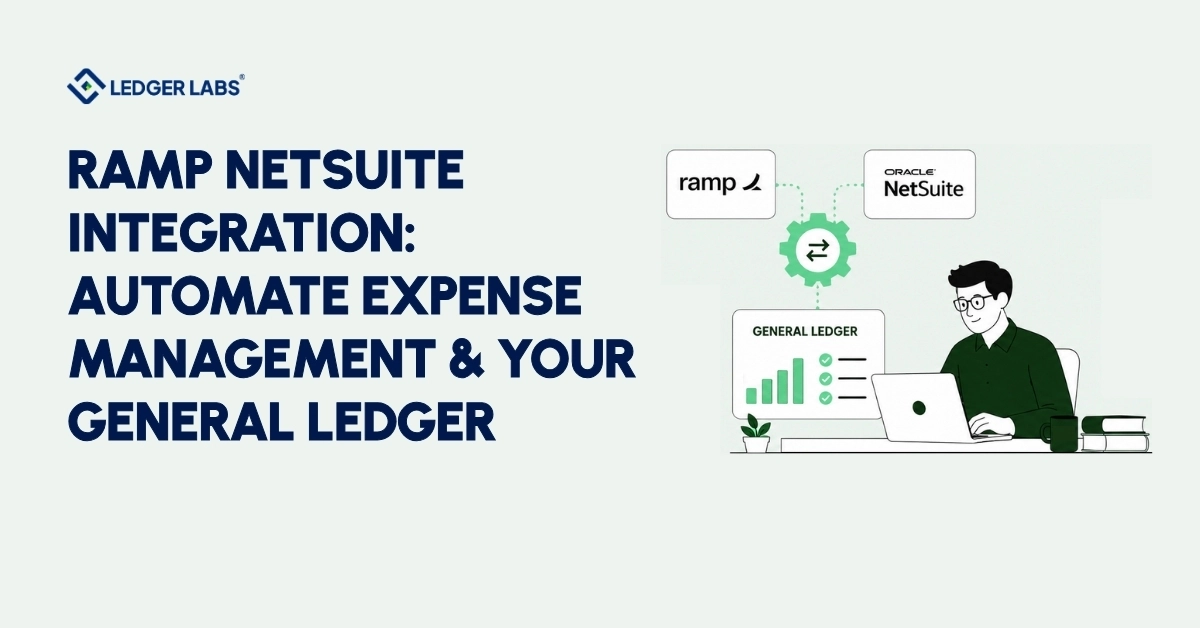
The Ramp NetSuite integration connects your corporate card spending directly to your general ledger. This setup eliminates the need for manual data entry, automates the posting process, and gives your accounting team real-time visibility into every transaction.
Activating the connector may seem like the hard work is done, but the configuration can be tricky. Misconfigured GL mapping can lead to transactions being posted incorrectly, while unchecked clearing accounts can grow over time. Missing cardholder-entity assignments can cause balance sheet errors, resulting in complicated corrections later. These issues typically surface during closing or auditing, making them costly to fix.
Having an implementation can be very helpful. Ledger Labs is an accounting firm with deep NetSuite expertise. Our outsourced NetSuite accounting team handles the chart of accounts and the month-end close around the connector. We have set up integrations and managed both simple and complex multi-subsidiary OneWorld configurations. Each project includes an audit of general ledger mapping, a clear cardholder setup, and a review 30 days after going live.
This guide explains how Ramp transactions post to your NetSuite GL, how to set up multi-entity structures correctly, the costs and timelines for implementation, and what CPAs check after going live to ensure your books are accurate before the first period closes.
Key Takeaways
- Clearing account accuracy is critical; if it doesn’t zero out after each settlement cycle, your balance sheet is wrong.
- GL mapping determines everything; one incorrect spend category silently posts every subsequent transaction to the wrong account.
- Multi-entity requires OneWorld; Standard NetSuite cannot route transactions to separate subsidiary ledgers. Confirm your edition first.
- Native connector suits most setups: standard NetSuite, clean chart of accounts, under three subsidiaries. Go custom only when configuration demands it.
- Misconfigured integrations cost more than properly scoped ones; GL errors compound monthly and surface during audits, fundraises, and board reporting cycles.
What Does the Ramp NetSuite Integration Do?
The Ramp NetSuite integration addresses one key issue: accurately and completely posting corporate card expenses to your general ledger (GL) without manual work.
Every approved Ramp transaction automatically flows into NetSuite, coded to the right account, with the necessary documentation attached, and is ready for month-end closing- no exports, no data entry, and no delays in reconciliation.
Here’s what it automates and how it benefits your accounting:
- Automated GL Posting: Each approved transaction automatically creates a journal entry in NetSuite. This eliminates the need for manual imports, CSV uploads, and end-of-month catch-up work.
- Receipt Matching and Attachment: Receipts uploaded in Ramp automatically attach to the corresponding NetSuite transaction record. This ensures a complete audit trail without anyone having to chase documentation at closing.
- Department, Class, and Location Coding: Transactions automatically go to the correct cost center based on the spend policies you set up in Ramp. This prevents manual reclassification and eliminates errors from miscoded entries.
- Spend Policy Enforcement: Ramp flags any out-of-policy transactions before they post to your GL. This means your accountant does not discover issues at month-end after spending has already occurred.
- Employee Reimbursements: Out-of-pocket expenses post to NetSuite as either vendor bills or journal entries, depending on your setup, keeping reimbursements within your normal accounts payable process.
- Bill Pay and Accounts Payable Workflow: Vendor invoices from Ramp’s bill pay module flow directly into NetSuite’s accounts payable workflow, reducing the need for duplicate data entry.
- Near-Real-Time Sync: Transactions sync within minutes of approval. Your NetSuite GL reflects your actual spending continuously, rather than just in batches at the end of the period.
For most Ledger Labs clients, this system saves 3–5 hours of manual reconciliation each week. More importantly, it reduces errors in the GL that often arise from manual entry, such as miscoded transactions, missing receipts, and late postings, which can distort financial reports.
Activating the integration is straightforward. However, setting it up correctly for accurate GL posting from the first transaction, like mapping accounts, structuring clearing accounts, and department coding, requires accounting expertise to ensure success.
How Ramp Transactions Post to Your NetSuite GL?
Most implementations either function smoothly or lead to accounting issues. The clearing account workflow is crucial for ensuring the accuracy of the general ledger (GL). This is the first area we check when a client approaches us with a reconciliation problem after handling the setup themselves.
The Clearing Account: How the Accounting Entry Works
Ramp uses a clearing account, also known as a suspense account, to manage corporate card transactions in NetSuite before they are finalized.
Here’s how it works:
- When a cardholder makes a purchase, Ramp creates a journal entry. They debit the expense account (like Travel & Entertainment) and credit the Ramp Clearing Account.
- Once the card payment settles, they create a second entry. They debit the Ramp Clearing Account and credit the Bank/Liability account.
After each settlement cycle, the clearing account should have a balance of zero. If the balance increases every month, it means one of two things: settlement entries are not posting, or the sync process is only partially complete.
If this issue isn’t fixed, a growing clearing account will hide your actual liability and affect your balance sheet. This is the first report we check during any post-go-live review. Reconciling that clearing account to card and bank activity every month is routine work for a bookkeeper who works inside NetSuite, and we can take it over so the books close one week after month end.
Field-Level Mapping: What Moves from Ramp to NetSuite
| Ramp Field | NetSuite Field |
|---|---|
| Merchant name | Vendor record |
| Transaction amount | Journal entry amount |
| Spend category | GL account (set in Ramp policy) |
| Department tag | Department / Class |
| Location tag | Location segment |
| Receipt attachment | File attachment on transaction record |
| Memo/notes | Transaction memo |
| Custom fields | Custom segments (if configured) |
Every unmapped field is a gap in your general ledger (GL). If a spend category has no NetSuite account assigned, it doesn’t produce an error; instead, it quietly posts to your default expense account. We often see weeks of incorrect transactions in “Other Expense” as a common cleanup task from self-configured integrations.
Approval Timing and Your Close Cutoff
Transactions sync in Ramp after approval, not at the time of purchase. If your process requires a manager’s approval before submission, there will be a delay between the purchase date and when it posts in NetSuite.
To ensure accuracy for month-end closing, complete all approvals before your cutoff date. Make sure to include this deadline in your internal approval process before going live.
When Sync Fails: Accounting Consequences
If you have failed syncs in Ramp’s integration error log, they will not automatically retry. Common reasons for this include a missing vendor record in NetSuite, an inactive GL account in the mapping, or a required custom field left blank.
Ignoring this error queue can lead to problems because those transactions will not be included in your general ledger (GL). As a result, you may close the period with incomplete financial records.
What Ledger Labs verifies before go-live: Every implementation includes a GL mapping audit. We confirm that every Ramp spend category maps to an active NetSuite account, that all required custom segments are populated, and that the clearing account is correctly set up as a current liability. Fixing mapping errors before the first live transaction costs a fraction of what it costs to clean up after weeks of incorrect postings.
Multi-Entity and OneWorld Setups
If you manage several subsidiaries, this section explains whether your current setup can work and how much it will cost your accounting team to skip the verification step.
OneWorld vs. Standard: Why It Matters for Your Books
NetSuite Standard supports a single legal entity. Departments and cost centers work fine, but transactions cannot be routed to separate subsidiary ledgers.
NetSuite OneWorld is required for multi-subsidiary routing, separate charts of accounts, intercompany eliminations, and currency handling per entity.
The accounting consequence of getting this wrong is that every transaction posts to the wrong entity. If you’re on Standard and configure the integration for a multi-entity setup without upgrading first, transactions either fail to sync or collapse into the parent entity’s ledger, resulting in incorrect entity-level financial statements and requiring manual journal entry corrections to unwind.
Confirm your edition before configuring anything else. Setup → Company → Enable Features → Subsidiaries. Active = OneWorld. Not listed = Standard. If you’re on Standard and need multi-entity support, the NetSuite upgrade has to happen first.
How Ramp Routes Transactions to the Right Subsidiary?
In OneWorld, each cardholder is linked to a specific NetSuite subsidiary when they are set up. This means their transactions automatically go to that subsidiary’s financial records. The link is at the employee level, not at the transaction level.
This is important for accounting reasons: if a cardholder is assigned to the wrong subsidiary, all their transactions will be recorded in the wrong financial records. This is not just a simple mistake; it creates a balance sheet error that needs intercompany journal entries to fix. We verify each cardholder’s assignment before the connector starts working.
Pre-Implementation Checklist
- NetSuite OneWorld confirmed active
- All subsidiaries created and active in NetSuite
- Each cardholder confirmed to their correct subsidiary
- Required currencies enabled in NetSuite
- Intercompany elimination accounts configured if applicable
At Ledger Labs, we complete this checklist before working on connectors for multi-subsidiary clients. Skipping it often leads to rework in projects that begin without CPA oversight.
Connector Options: Native, SuiteScript, or iPaaS?
The connector you choose determines more than just cost and timeline; it also affects how much of your accounting configuration can be automated and how much your team will have to work around the integration’s limitations each month.
| Factors | Native Connector | Custom SuiteScript | iPaaS (e.g., Celigo) |
|---|---|---|---|
| Setup time | 2–3 weeks | 4–8 weeks | 3–5 weeks |
| Cost | Included with Ramp Plus | $15,000–$40,000 | $5,000–$15,000 setup + $3,000–$8,000/year |
| Flexibility | Low – standard fields only | Very high – fully custom | Medium – platform-dependent |
| Best for | Standard setups, <3 entities | Complex custom fields, workflows | Multi-system environments |
| Maintenance | Ramp manages | Internal team or development firm | iPaaS vendor |
| Custom segments | Limited | Full support | Platform-dependent |
When Native Is the Right Choice?
For most growing small and medium-sized businesses (SMBs) with standard NetSuite setups, a clean chart of accounts, and fewer than three subsidiaries, the built-in connector works well. Ramp takes care of updates, so your team doesn’t have to worry about maintenance when either system changes.
However, it’s important to note that the native connector only supports standard field mapping. If your NetSuite setup uses custom segments for project coding, grant tracking, or intercompany allocation, and those segments are unsupported, your transactions will post without them. This creates gaps in coding that your accounting team will need to fill in manually each month.
When You Need Custom SuiteScript?
Custom SuiteScript is the right path when your NetSuite configuration has outgrown what standard field mapping can handle: custom segments that need to be mapped, approval workflows that need to be triggered on incoming transaction data, or multi-entity routing logic that native SuiteScript doesn’t support.
The accounting case for custom: the cost of a SuiteScript build is fixed. The cost of monthly manual workarounds to compensate for a native connector that can’t handle your setup compounds indefinitely. For complex configurations, custom is often the lower-total-cost option over 24 months.
When iPaaS Makes Sense?
If you’re already running other NetSuite integrations through a platform like Celigo, adding Ramp through the same layer keeps your integration architecture consolidated. The ongoing license adds cost, but reduces operational complexity when you’re managing multiple connected systems.
How Long Does Ramp NetSuite Integration Take?
For a standard native connector setup, plan for three weeks from kickoff to go-live.
| Phase | Timeline | What Happens |
|---|---|---|
| GL mapping + chart of accounts review | Week 1 | Map Ramp spending categories to NetSuite GL accounts, review inactive accounts, identify missing segments, and resolve coding gaps. This establishes the accounting foundation, as mistakes here can affect future transactions. |
| Connector configuration + cardholder setup | Week 2 | Install the SuiteApp, configure Token-Based Authentication (TBA), deploy scripts, and set up cardholder profiles and subsidiary assignments for multi-entity environments. |
| Test transactions + go-live | Week 3 | Process 5–10 test transactions across multiple categories, departments, and cardholders. Verify GL postings, clearing account behavior, and receipt attachments, then resolve any sync errors before production go-live. |
| Custom builds only | +2–4 weeks | SuiteScript or iPaaS implementations typically require additional time for custom development, user acceptance testing (UAT), and issue resolution before deployment. |
What extends the timeline:
- Messy chart of accounts: Inactive accounts, duplicate entries, or inconsistent naming require cleanup before GL mapping can begin. Ledger Labs includes a COA review in every implementation for this reason.
- No Ramp Plus: Full sync features require Ramp Plus ($12/user/month). Confirm your plan tier before kickoff.
- Multi-entity without OneWorld: Requires a NetSuite upgrade first. Add 2–4 weeks depending on your partner’s timeline.
Week 1 is where most of the accounting judgment happens, and where DIY implementations most commonly go wrong. Mapping spend categories to GL accounts can feel mechanical until you encounter ambiguous transactions, shared cost centers, or custom segments without a clean mapping.
That’s not a configuration decision. It’s an accounting decision. Ledger Labs leads this phase in every implementation, ensuring the logic is correct before a single live transaction posts.
What Does Ramp NetSuite Integration Cost?
The native connector is free to activate. The cost is configuring your GL correctly, and what you spend upfront on implementation is almost always less than what you spend cleaning up a misconfigured one.
Two cost buckets: Ramp platform access and implementation.
Ramp Platform Cost
| Plan | Monthly Cost | NetSuite Integration Depth |
|---|---|---|
| Ramp Free | $0 | Basic sync – limited field mapping and controls |
| Ramp Plus | $12/user/month | Full NetSuite sync, custom GL mapping, and advanced spend controls |
Full GL automation, custom field mapping, spend policy sync, and department and class coding require Ramp Plus.
Implementation Cost
| Type | Range | Scope |
|---|---|---|
| Native connector – Ledger Labs-managed | Scoped per engagement | GL mapping audit, SuiteApp setup, cardholder configuration, test transactions, and go-live support |
| Custom SuiteScript build | $15,000–$40,000 | Custom field mapping, workflow triggers, multi-entity routing, user acceptance testing (UAT), and documentation |
| iPaaS setup (e.g., Celigo) | $5,000–$15,000 setup + $3,000–$8,000/year | Platform configuration, field mapping, and ongoing platform licensing |
| Ongoing managed accounting service | See our pricing page | Monthly reconciliation review, sync error resolution, and GL accuracy monitoring |
What Drives Cost Up
- Number of subsidiaries: Each entity adds mapping complexity and cardholder routing configuration
- Custom NetSuite fields: Every custom segment that needs mapping adds scoping and testing time
- Chart of accounts condition: A COA cleanup before mapping is billable scope; clean books reduce implementation cost
- Existing workflows: Preserving custom approval rules or triggers requires additional configuration
It’s essential to set up your accounting correctly from the beginning. A misconfigured general ledger (GL) can lead to inaccurate financial reports and create extra work. Problems like incorrect transaction codes and unresolved accounts can become costly over time. Ledger Labs provides a specific estimate for your project after reviewing your NetSuite configuration.
Step-by-Step Setup Guide
Prerequisites: Ramp Plus active · Admin access to both Ramp and NetSuite · Chart of accounts reviewed · NetSuite OneWorld confirmed (multi-entity only)
Step 1: Confirm Your NetSuite Edition
Time: ~15 min | Who: Finance manager
Setup → Company → Enable Features → Subsidiaries.
- Active = OneWorld
- Not listed = Standard
Multi-entity routing is not possible on Standard. Confirm this before any other configuration begins.
Step 2: Install the Ramp SuiteApp
Time: ~20 min | Who: NetSuite Admin
SuiteApp Marketplace → search “Ramp” → install official Ramp SuiteApp.
Deploys the scripts and custom records Ramp needs to push transaction data into NetSuite. Without this, no data moves regardless of what’s configured downstream.
Step 3: Configure Token-Based Authentication
Time: ~30 min | Who: NetSuite Admin
Setup → Integration → Manage Authentication → Token-Based Authentication Tokens.
- Create a new token
- Assign to an integration user with correct role permissions
- Copy token credentials into Ramp’s NetSuite settings
Ramp authenticates via TBA, not username/password. Incorrect role permissions at this step cause silent authentication failures later.
Step 4: Deploy Integration Scripts
Time: ~20 min | Who: NetSuite Admin
Customization → Scripting → Script Deployments → confirm Ramp SuiteScripts are deployed and set to Active.
If scripts are not active, transactions will not sync regardless of authentication status. Verify Active status; do not assume deployment on install.
Step 5: Map GL Accounts and Departments
Time: 1–3 hrs | Who: CPA / Finance manager
Ramp accounting settings → map each spend category to the corresponding NetSuite GL account → assign department and class coding → configure custom segments if applicable.
This is the step where most DIY implementations break down. An incorrect mapping here doesn’t produce an error; it silently posts every subsequent transaction to the wrong account. Retroactive reclassification across weeks or months of live transactions is the most common and most avoidable accounting cleanup we handle at Ledger Labs. If you engage a CPA for one step in this process, make it this one.
Step 6: Set Up Cardholders and Entity Assignments
Time: ~1 hr | Who: Finance manager
Ramp → each cardholder profile → link to correct NetSuite employee record.
For OneWorld: assign each cardholder to their subsidiary.
An unassigned cardholder doesn’t throw an error; their transactions either fail silently or default to the parent entity, posting to the wrong ledger without any alert.
Step 7: Run Test Transactions
Time: 1–2 days | Who: CPA / Finance manager
Run 5–10 test transactions across different categories, cardholders, and departments. Verify four things in NetSuite:
- Journal entry format is correct
- Clearing account is behaving as expected
- Receipts are attaching to transaction records
- Department and class codes are populating
Resolve every sync error before going live; errors that exist in testing will exist in production.
Step 8: Approve OAuth and Activate Live Sync
Time: ~10 min | Who: Finance manager
Complete OAuth authorization in Ramp’s NetSuite settings → grants Ramp ongoing permission to push data to NetSuite → integration goes live.
Monitor the first 48 hours. Real transactions surface edge cases that test transactions missed.
Is the Ramp NetSuite Integration Worth It?
For the right setup, configured correctly, yes, decisively.
The integration eliminates the manual accounting work that scales poorly: matching card statements to GL entries, recoding miscategorized transactions at month-end, and chasing receipts before close. For finance teams managing that work today, the ROI is straightforward; the hours recovered pay for implementation within the first quarter.
The risk is not the integration. It’s a misconfigured one.
A poorly mapped GL doesn’t just create reconciliation work. It produces inaccurate period financials, wrong cost center allocations, a clearing account that never zeros, missing custom segments that distort reporting. Those errors compound month over month and surface at the worst possible time: during an audit, a fundraise, or a board reporting cycle.
The difference between a clean implementation and a cleanup project comes down to what happens in GL mapping, cardholder setup, and the post-go-live review, the three phases where accounting judgment matters most and where most self-configured integrations fall short.
If you’re evaluating Ramp alongside other NetSuite spend management tools, see our Expensify NetSuite integration guide. If you’re ready to configure Ramp + NetSuite correctly, Ledger Labs handles the full implementation.
Conclusion
The Ramp NetSuite integration works well when set up correctly, but can cause serious accounting issues if it’s not.
Activating the connector is easy. However, to ensure your general ledger (GL) is accurate from the first transaction, you need a good chart of accounts, clean field mapping, correct assignments of cardholders to entities, and a review after going live to confirm your books are accurate before closing the first period. These are accounting decisions, not just setup choices.
Ledger Labs is a firm led by qualified accountants. We have successfully implemented this integration for SaaS, ecommerce, and manufacturing clients, ranging from simple setups to complex multi-subsidiary OneWorld configurations.
Every project includes a GL mapping audit, full connector setup, and a 30-day review after going live to ensure your books are accurate from day one.
FAQ
1. How does Ramp post transactions to NetSuite?
When a transaction is approved in Ramp, the integration creates a journal entry in NetSuite: debit to the mapped expense account, credit to the Ramp clearing account. When the card payment settles, a second entry posts: debit the clearing account, credit the bank/liability account. Receipts attach to the NetSuite transaction record automatically if file attachment mapping is configured correctly.
2.Does Ramp NetSuite integration support multiple subsidiaries?
Yes, but only on NetSuite OneWorld. Standard NetSuite does not support multi-subsidiary routing. On OneWorld, each cardholder is assigned to a subsidiary in Ramp, and their transactions post to that subsidiary’s ledger automatically. Confirm OneWorld is active and every cardholder has a confirmed entity assignment before starting implementation.
3. How long does Ramp NetSuite integration take to set up?
A standard native connector implementation takes approximately three weeks: week one for GL mapping and chart of accounts review, week two for connector configuration and cardholder setup, week three for test transactions and go-live. Custom SuiteScript or iPaaS builds add two to four weeks. Prerequisites not in place, messy chart of accounts, no OneWorld, missing admin access, extend these timelines.
4. What does Ramp NetSuite integration cost?
Ramp Plus runs $12/user/month and is required for full NetSuite sync functionality. Custom SuiteScript builds range $15,000–$40,000.
5. Is Ramp's native connector enough, or do I need a custom build?
For most companies — standard NetSuite, under three subsidiaries, clean chart of accounts — native is sufficient. You need a custom build when you have custom fields that native mapping doesn’t support, multi-subsidiary OneWorld requirements, or workflows that need to trigger on incoming transaction data. A CPA review of your NetSuite configuration before implementation will tell you which applies to your setup.