
You set up Odoo. Products are in. Warehouses are configured. Purchase orders are flowing.
Three months later, your accountant flags a discrepancy between the stock valuation report and the general ledger. Month-end close is taking longer than it did before you switched. And nobody on the team can say for certain which inventory valuation method is running, or whether it matches what you reported to the IRS last year.
Here’s the thing: this is the most common post-implementation problem we see. The system runs. The configuration breaks the books.
As an accounting firm that sets up and runs Odoo inventory accounting for product-based businesses, Ledger Labs knows where these setups go right and where they silently go wrong. Our Odoo accounting services keep valuation and COGS tied to the ledger.
Start with what the module does, because most businesses go live without fully understanding what they’ve turned on.
Key Takeaways
- Every stock movement in Odoo automatically creates a journal entry, but only if product categories are configured for automated valuation. Without that setup, nothing posts.
- Your inventory valuation method (FIFO, AVCO, or Standard Price) directly determines your COGS and balance sheet inventory value. Choose AVCO for ecommerce and retail, FIFO for audit-heavy or regulated operations, and Standard Price for stable-cost manufacturing.
- Switching valuation methods after inventory is on hand forces a full stock revaluation; it is not a simple toggle. Get the decision right at setup.
- The Anglo-Saxon accounting setting controls when COGS posts, at goods receipt, or at vendor invoice. This is a tax compliance decision that belongs to your accountant, not your implementation team.
- Configure product categories and the chart of accounts before loading any inventory data. Doing it in the wrong order means having to redo the entire setup.
- Odoo inventory is the right fit for product-based businesses with multi-location stock needs between $500K and $15M. Below 50 SKUs or heavily integrated with QuickBooks, the cost-benefit math changes.
- An implementation ensures your valuation method aligns with your tax strategy and your books are audit-ready from day one, not three months after go-live.
What does the Odoo Inventory Module Actually Do?
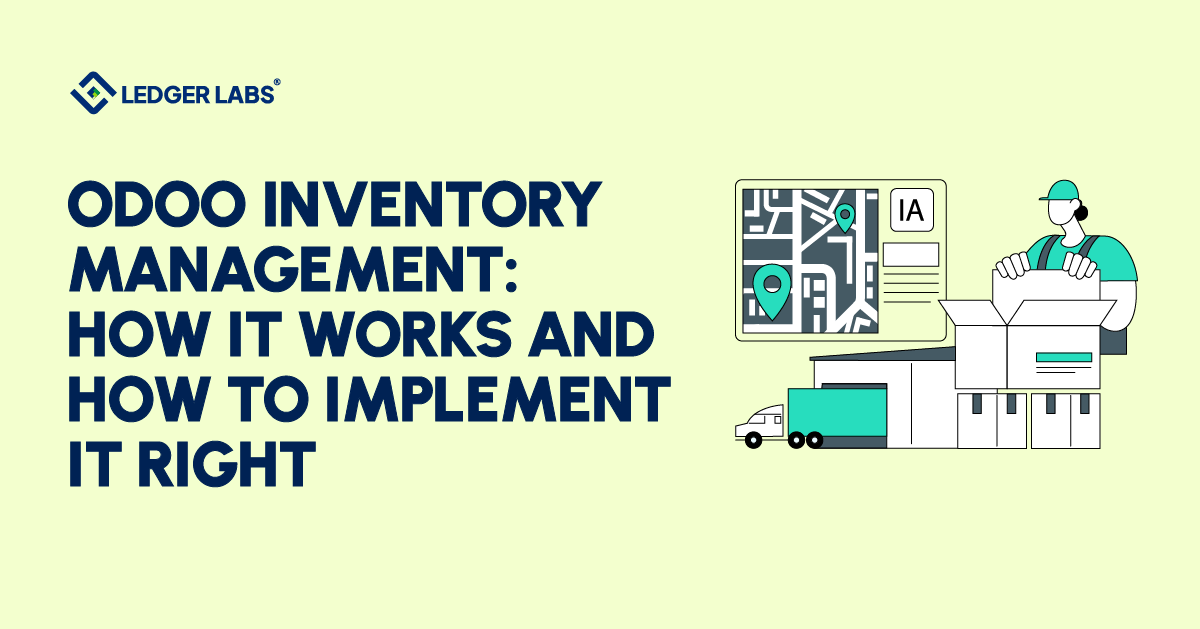
The Odoo inventory module is the operational engine connecting your suppliers, warehouse, and customers.
Every product receipt, internal transfer, pick-and-pack operation, and outbound delivery runs through it. When you configure it correctly, your stock levels, locations, and product costs update in real time, no spreadsheet, no manual entry, no lag.
Here’s what that looks like in practice:
Core Operations - Receiving, Putaway, and Stock Transfers
When a supplier delivers 200 units, you validate the receipt in Odoo. Two things happen simultaneously: your inventory quantity updates, and, if you’re on automated valuation, a journal entry posts to your stock valuation account.
No manual posting. No delay between physical and financial reality.
Putaway rules tell Odoo where products belong. A $40,000 electronics shipment goes to the secured shelf in Warehouse A, not the general receiving bay. Rules run automatically at receipt validation, so your warehouse team doesn’t make location decisions; the system does.
Internal transfers move stock between locations or warehouses. Every move is tracked. Every move leaves a reversible, documented trail.
Warehouse Management, Multi-Location, and Barcode Scanning
Odoo supports multiple warehouses and sub-locations within a single instance.
A retailer with a main warehouse and a retail floor runs replenishment between them automatically. A manufacturer with raw materials, work-in-progress, and finished goods locations tracks product through each stage without a separate system.
Barcode scanning connects physical operations to the system in real time. Your warehouse team scans products on receipt and on pick. Manual quantity entry disappears, and so do the transcription errors that come with it.
Automated Reorder Rules and Lot/Serial Tracking
Set a reorder point of 50 units with a preferred vendor and a standard order quantity. When the stock reaches 51, Odoo automatically generates a draft purchase order. Your procurement team reviews and confirms that they don’t originate.
Lot and serial number tracking adds full traceability. A food manufacturer tracking batch numbers, a medical device distributor tracking serial numbers, or an ecommerce brand managing warranty claims all follow a specific unit from vendor receipt through customer delivery. In an audit, you produce the full chain in seconds.
The module handles your physical operation. What makes it genuinely powerful is what happens when a stock movement hits your books, and that’s the part most implementation guides skip.
How Odoo Inventory Connects Your Warehouse to Your Books?
Every stock movement in Odoo creates a corresponding accounting entry automatically when the warehouse operation is validated.
No manual posting. No batch upload at period end. The journal entry is recorded when the work is done.
What Happens in Your General Ledger When Stock Moves?
Here’s what this looks like when a sales order ships at 2 pm on a Tuesday:
Your warehouse team validates the delivery. Odoo immediately posts two entries: a debit to Cost of Goods Sold and a credit to the Stock Valuation account. The cost of those goods leaves your asset account and lands in your P&L in real time, at the correct per-unit cost based on your valuation method.
When you receive a purchase order, the process works in reverse. Odoo increases your inventory value by debiting the Stock Valuation account. It then either credits a Stock Interim account if the vendor bill has not yet been received, or credits Accounts Payable directly if it has been received. Once you match and confirm the vendor bill, the interim account will clear automatically.
This inventory system links each stock event to a financial entry, complete with a timestamp, user, and clear record.
One retail client spent 18 months manually reconciling their warehouse records with their accounting software. Their month-end close took 16 hours to find differences between stock reports and the general ledger. After we introduced automated valuation in Odoo, the time was reduced to just 45 minutes.
This demonstrates how integrating physical stock and financial records into a single system can save time and effort.
The Anglo-Saxon Accounting Setting and Why It Matters for Your COGS
The Anglo-Saxon accounting setting controls when COGS gets recorded, at goods receipt or at vendor invoice.
This is not a minor toggle. For US-based businesses, it directly affects your month-end P&L and your tax-period COGS figures.
With Anglo-Saxon enabled, COGS posts when you validate the goods receipt. The cost hits your P&L when the product arrives, regardless of when the vendor bill processes. For most US product-based businesses, this is the correct setting, it matches the physical moment you take ownership of inventory.
But this decision belongs to your accountant, not your Odoo implementer. IRS Publication 538 is clear that your costing method and recognition timing must be consistent and documented.
Get the integration right and your books close faster, your COGS is accurate, and your stock value on the balance sheet reflects reality. Get it wrong and your accountant spends every close correcting entries that Odoo posted using the wrong timing or the wrong accounts.
The operations are configured. Now you need to decide what cost those operations post at.
FIFO, AVCO, or Standard Price - Which Valuation Method Is Right for Your Business?
Your valuation method determines the cost assigned to every unit that leaves your warehouse.
That means it directly determines your COGS, your gross margin, and the inventory asset value on your balance sheet. Most businesses pick one during implementation because someone said it was standard. Few understand what they actually chose, until their first audit or financing conversation.
Here are the three options, who each one is right for, and what breaks when you pick the wrong one.
1. Standard Price - When Predictability Beats Precision
Standard Price assigns a fixed cost per unit. You set it manually and update it when you choose.
When a product is shipped, we record the cost of goods sold (COGS) at a set price, no matter what we actually paid the supplier for that batch. This approach works well when our costs are steady. However, if supplier prices change, the difference between the set price and the actual price creates a variance that needs regular review and adjustment.
Use the standard price when your product costs are stable, you follow a clear bill of materials, or you prefer predictable budgeting over exact accounting.
2. Average Cost (AVCO) - The Right Default for Most Ecommerce and Retail Businesses
AVCO recalculates your average cost per unit every time you receive new stock.
Buy 100 units at $10 and then 50 units at $14, your AVCO updates to the blended cost across all 150 units. When units ship, COGS is debited at the current weighted average.
At Ledger Labs, AVCO is our default recommendation for ecommerce and retail clients. It handles supplier price variability without manual adjustments. COGS stays smooth. The audit trail is clean. For a business buying from multiple suppliers at fluctuating prices, which describes most product-based businesses between $1M and $10M, AVCO produces the most accurate ongoing COGS without operational overhead.
3. FIFO - When Audit-Readiness and Exact COGS Matter More Than Simplicity
FIFO assumes the first units you purchased are the first units you sell.
When a unit ships, COGS is debited at the cost of the oldest inventory layer, the actual purchase cost of the specific batch being consumed. You can trace every cost back to a specific purchase receipt. That makes FIFO the most defensible COGS figure in an audit.
FIFO is right for businesses with perishable or seasonal inventory, businesses in regulated industries requiring lot traceability, and businesses preparing for a financing event or acquisition where financials need to stand up to scrutiny.
| Method | Best For | COGS Behavior | Complexity |
|---|---|---|---|
| Standard Price | Manufacturing, stable costs | Fixed; predictable | Low |
| AVCO | Ecommerce, retail, commodity products | Smoothed; recalculates on each receipt | Medium |
| FIFO | Perishables, seasonal, regulated, audit-heavy | Exact; traces to the purchase receipt | Medium-High |
When you switch inventory valuation methods in Odoo after you have inventory on hand, it will require revaluing all existing stock based on the new method’s cost. This creates an accounting adjustment that needs to be recorded, explained, and possibly disclosed. Changing the method is not a simple process.
So, it’s essential to choose the right method during setup. Using the wrong valuation method can distort your Cost of Goods Sold (COGS) by 8–15%, especially in a fluctuating procurement environment.
Many businesses realize this issue too late, either during their first audit or their first conversation with investors. By then, fixing it can be much more expensive than seeking proper advice at the beginning.
How to Set Up Odoo Inventory Accounting: The Configuration Sequence That Works?
Most inventory accounting problems trace back to one of two mistakes: skipping a setup step or doing the steps in the wrong order.
Miss one checkbox, and journal entries stop generating with no error message telling you why. Configure product categories before enabling automated accounting, and you’ll need to redo everything from scratch.
Here’s the sequence that works the first time:
Step 1 - Install the Accounting App and Enable Developer Mode
Before you make any changes to inventory settings,
1. Install the Accounting app:
- Go to Apps and search for “Accounting.”
- Click Install
Inventory accounting requires the Accounting module to create journal entries; there is no workaround.
2. Then enable Developer Mode:
- Go to Settings → Activate Developer Mode
This unlocks the Inventory Valuation field on product categories. Without it, you won’t see half the settings you need.
3. Finally, check your accounting mode:
- Go to Accounting → Configuration → Settings
- Decide whether Anglo-Saxon Accounting is right for your business
Note: Your accountant should make this call, not your implementation team.
Step 2 - Configure Product Categories and Switch to Automated Valuation
- Go to Inventory → Configuration → Product Categories.
- Click into the category you want to configure.
- Under Inventory Valuation, you’ll see two fields:
- Costing Method
- Inventory Valuation
- Set your Costing Method first (Standard Price, AVCO, or FIFO)
- Switch Inventory Valuation from Manual to Automated.
That switch is what activates automatic journal entry creation. Once you flip it, three new fields appear: Stock Valuation Account, Stock Input Account, and Stock Output Account. These tell Odoo which GL accounts to hit on each stock movement.
Step 3 - Set Up Your Chart of Accounts
Your journal entries need somewhere to land.
- Go to Accounting → Configuration → Chart of Accounts
- Verify these three accounts exist:
- Stock Valuation Account – current asset type; holds total inventory value on your balance sheet
- Stock Input Account – interim account; receives debits when goods arrive before the vendor bill
- Stock Output Account – interim account; receives credits when goods ship before the customer invoice
If they don’t exist, create them before linking them to product categories. Linking to non-existent accounts is a common setup error that only surfaces when you try to post your first transaction.
Step 4 - Test Before Going Live
Never go live without running a test.
- Create a test product in your newly configured category.
- Process a dummy purchase order for 10 units at $5 each.
- Validate the receipt.
- Then go to Accounting → Journal Entries,
- look for an STJ entry showing a $50 debit to Stock Valuation.
If you encounter a no entry message, follow these steps: First, make sure Automatic Accounting is turned on in Settings. Next, check that your product category is set to Automated Valuation. Finally, confirm that all three GL accounts are linked. Taking these steps catches 90% of configuration errors before they affect real transactions.
Who Should Actually Use Odoo Inventory Management?
Odoo inventory management is genuinely strong software. It is not the right software for every operation.
Discovering a mismatch six months post-go-live costs far more than a fit assessment before implementation. Here’s who gets the most out of Odoo inventory, and who should think twice.
Ecommerce and Retail - Where Odoo Inventory Wins
Odoo inventory for ecommerce and retail businesses manages multi-channel stock with a mix of suppliers at varying price points.
AVCO handles supplier price fluctuation automatically. A multi-warehouse structure manages split inventory across fulfillment locations. Native and connector-based integrations with Shopify and WooCommerce push sales orders directly into pick-pack-ship, no manual re-entry.
For a Shopify or WooCommerce seller between $1M and $10M managing 100–2,000 SKUs across one or two warehouse locations, Odoo inventory delivers the right capability at the right cost.
Manufacturing and Wholesale - Where Lot Tracking and BOM Integration Matter
Manufacturers get significant value from Odoo’s native integration with the Manufacturing module. Bills of Materials drive material consumption automatically when production orders are validated. Lot and serial tracking gives you the batch traceability that regulated industries require.
Wholesale distributors handling large purchase volumes, rebate agreements, and multi-location stock management get accurate COGS through Odoo’s purchase integration and landed cost allocation, without maintaining a separate inventory system.
When Odoo Inventory Is NOT the Right Fit?
This matters, so let’s say it directly.
If your entire operation runs on QuickBooks with four or more direct integration, payroll, CRM, ecommerce, a marketplace connector, and none of those have a native Odoo equivalent, the integration rebuild can add $15,000–$30,000 to implementation cost. Migration cost outweighs the benefit at your current revenue level.
If you’re below $500K in revenue, have fewer than 50 SKUs, and have no multi-warehouse requirement, Odoo’s inventory configuration is more complex than your operation needs right now.
Right-sizing matters. A tool too large for your operation creates as many problems as one too small.
Best Practices That Keep Odoo Inventory Accurate After Go-Live
Configuration gets you live. Habits keep you accurate.
The businesses that get the most from Odoo inventory management aren’t the ones with the most sophisticated setups. They’re the ones whose teams understand how their daily actions affect the books, and who build simple routines around that knowledge.
1. Configure before you load data
Set up product categories, valuation methods, and costing before entering a single SKU. Changing the valuation method after the inventory is on hand forces a revaluation that you’ll need to explain to your accountant.
2. Reconcile regularly
Compare your Stock Valuation account balance to your GL inventory account weekly if you’re high-volume, monthly if not. Discrepancies caught early take 20 minutes to trace. Discrepancies found at year-end take days.
3. Train your warehouse team on the financial impact
A warehouse operative validating a receipt without the correct product category assigned doesn’t make a warehouse mistake; they create an accounting error. Understanding the connection changes behavior.
4. Involve your accountant in valuation decisions
Valuation method, Anglo-Saxon setting, and stock account structure are accounting decisions that live inside software settings. Don’t let an IT team or implementation consultant make these calls unilaterally.
5. Use a staging environment
Test configuration changes before applying them to production, especially any changes to product categories or costing methods on active products.
6. Enable Developer Mode for visibility
It surfaces automatic valuation entries in the chatter for each stock move, making it faster and clearer to diagnose unexpected journal entries.
7. Document every setting and the reason for it
When your accountant changes and the new one asks why you’re on FIFO, the answer shouldn’t be “I think the implementation consultant chose it.”
Conclusion
Here’s the single most important thing to take from this guide: Odoo inventory management only works as well as the underlying accounting configuration.
The module handles your physical operation. The valuation method, product category setup, and GL account structure determine whether those physical operations produce accurate financial records or a monthly reconciliation headache.
You now know which valuation method fits your business, what the setup sequence looks like, and which warning signs indicate the configuration is wrong.
If your inventory runs in Odoo but your books don’t reflect it cleanly, that gap almost always traces back to three configuration decisions made at implementation. Those decisions are fixable, and fixing them is significantly faster than living with the downstream consequences.
Book a free consultation call for Odoo inventory assessment with our accounting team. We’ll show you exactly where your setup stands and what it takes to close cleanly.
FAQs
How much does Odoo inventory management cost?
Odoo Inventory is free in the Community edition and included in Enterprise plans starting at approximately $24–$31 per user per month. Implementation is the larger variable; most SMB setups run $8,000–$25,000, depending on warehouse complexity, product categories, and integration requirements.
Is Odoo inventory management good for ecommerce businesses?
Yes, particularly for ecommerce businesses managing 50–2,000 SKUs across one or two warehouse locations. AVCO handles variable supplier pricing automatically, and integrations with Shopify and WooCommerce sync sales orders for picking, packing, and shipping without manual re-entry. Every fulfillment updates COGS in real time. For businesses with five or more sales channels, verify integration coverage before committing.
What inventory valuation methods does Odoo support?
Odoo supports three methods: Standard Price (fixed cost per unit, best for stable-cost manufacturing), AVCO (weighted average that recalculates on each receipt, best for retail and ecommerce), and FIFO (first purchased, first sold, best for perishables, seasonal goods, or audit-heavy operations). You set the method at the product category level. Switching after inventory is on hand forces a revaluation, choose correctly at setup.
How long does it take to implement Odoo inventory management?
Most SMB Odoo inventory implementations run 4–8 weeks from kickoff to go-live. A single-warehouse ecommerce business with clean product data is typically live in 4 weeks. A multi-warehouse manufacturer with lot tracking and manufacturing module integration runs closer to 8–12 weeks. Timeline depends on warehouse structure, number of product categories, integration requirements, and data migration volume. Our discovery phase produces a specific timeline for your setup before work begins.
How does Odoo inventory integrate with accounting?
Every stock movement automatically creates a corresponding journal entry, no manual posting required. A purchase receipt debits Stock Valuation and credits Stock Interim or Accounts Payable. A sales delivery debits COGS and credits Stock Valuation. The integration requires the Accounting module installed and product categories configured for automated valuation. Without that configuration, entries don’t post. Our setup section above covers the full configuration sequence.