
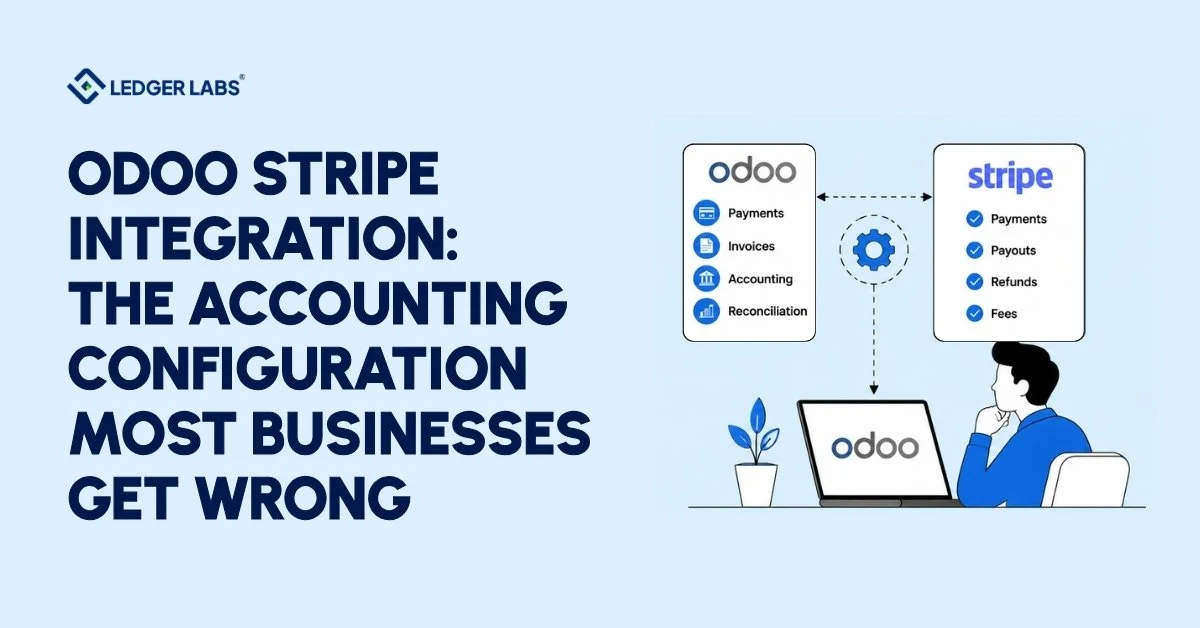
Most businesses get the Odoo Stripe accounting configuration wrong, not the payment connection, but the accounting layer underneath it that determines whether your books are clean every month.
Connecting Stripe to Odoo takes 20 minutes. Most businesses do exactly that, and then spend the next 12 months dealing with reconciliation gaps, unrecorded fees, and a month-end close that never quite closes on time.
The connection isn’t the problem. The accounting configuration is.
This guide is written by Ledger Labs CPAs who configure Odoo accounting for clients daily. We’ll show you exactly where Odoo Stripe setups break, and what the correct configuration looks like.
Key Takeaways
- Many Odoo Stripe setups handle payments but neglect accounting. This leads to unrecorded fees, manual reconciliation, and delayed monthly closes.
- Step 4 of the configuration process determines if reconciliation runs automatically or fails each month.
- A Stripe payout combines multiple transactions into a single bank deposit, and Odoo requires specific rules to automatically unpack it.
- A misconfigured Odoo Stripe account can waste $1,080–$4,320 each year in bookkeeper time, not including unrecorded fees that can distort your profit and loss statements.
- Ledger Labs configures financial processes for Odoo Stripe projects, ensuring smooth closings from day one.
What Odoo Stripe Integration Actually Does (And What It Doesn't Do on Its Own)?
Odoo Stripe integration connects Stripe’s payment processing to Odoo’s accounting module, but it only automates what you configure it to automate. The payment layer connects itself. The accounting layer needs to be built.
Most businesses set up Stripe, run a test transaction, and consider it done. The payment went through. The customer got a receipt. It feels connected.
Here’s the thing: the payment layer is connected. The accounting layer is an entirely different problem.
When the full configuration is in place, a payment confirmed in Stripe automatically triggers a chain of accounting events. The invoice in Odoo is marked paid. A journal entry records the transaction. The payment flows into reconciliation without anyone touching it.
What the integration does not do on its own:
- Decide which journal receives the entry
- Record Stripe’s processing fees as an expense
- Match the net payout to the gross invoices it represents
- Handle refunds and disputes as accounting events
Those outcomes require deliberate configuration decisions. And they’re the decisions most setups skip.
The integration runs across two modes:
- Online payments cover card transactions through Odoo’s ecommerce checkout, the customer portal, and Stripe payment links.
- In-person payments are processed through Stripe Terminal, which is connected to Odoo’s POS module.
In both cases, Stripe notifies Odoo when a payment is confirmed. That notification works reliably.
The outcomes of accounting entries depend on the initial setup of the accounts. This includes which accounts are debited and credited, how fees are recorded, and how payouts are balanced.
The payment layer connects itself. The accounting layer needs to be built.
The Four Accounting Problems a Misconfigured Odoo Stripe Setup Creates
A misconfigured Odoo Stripe setup creates four specific accounting problems: open invoices that have been paid, unrecorded processing fees, manual monthly reconciliation, and a month-end close that never completes on time. Each one is a direct result of skipping the accounting layer configuration.
The payment works. The accounting doesn’t.
And the damage is invisible until the month-end makes it visible.
Here are the four problems, specifically:
Problem 1: Invoices stay open after payment is confirmed
Stripe processes the charge successfully. Your customer paid. But Odoo doesn’t receive the accounting signal to mark the invoice closed.
Your AR aging report shows outstanding invoices that aren’t outstanding. Your AR automation chases payments that have already been collected. Every downstream AR workflow runs on inaccurate data.
Problem 2: Stripe fees never hit your books as expenses
Stripe deducts its processing fee before sending your payout. If your configuration doesn’t route that fee to an expense account, it disappears.
Your gross revenue looks accurate. Your operating expenses are understated by every fee Stripe has ever charged you. The P&L overstates profit quietly, every single month, the misconfiguration runs.
Problem 3: Reconciliation requires manual intervention every month
Your bank receives one Stripe payout, a net deposit representing dozens of transactions, minus fees, minus refunds.
Without correct reconciliation rules, your bookkeeper manually matches that deposit to its underlying invoices. Line by line. Every month.
At any meaningful transaction volume, that’s not bookkeeping. It’s a recurring operational cost disguised as normal accounting work.
Problem 4: The month-end close is delayed indefinitely
When reconciliation is manual, the close waits for whoever is doing the manual work.
Financial statements arrive late. Decisions about inventory, pricing, and hiring run on last month’s numbers. The delay compounds, a close that should take three days takes three weeks, and the next month starts before the last one finishes.
None of these is a software limitation. Odoo handles all of it automatically when the configuration is correct.
The question is whether it was built that way.
Let’s see what those four problems cost your business every month.
What does a Misconfigured Odoo Stripe Setup Costs You Every Month?
A misconfigured Odoo Stripe setup typically costs businesses $1,080–$4,320 per year in wasted bookkeeper time alone, before accounting for P&L distortion from unrecorded fees and the operational cost of delayed financial statements.
The four problems above have a dollar figure attached.
Most businesses don’t calculate it because the cost is distributed, bookkeeper hours here, a year-end correction there. It never appears as a single line item.
But it’s calculable. And it’s significant.
1. The bookkeeper's time cost is the most direct
Manual Stripe reconciliation, matching payouts to invoices, splitting fees, handling refunds, typically runs 3–6 hours per month for businesses processing 100–300 Stripe transactions.
At a US bookkeeper rate of $30–$60 per hour, that’s $90–$360 per month.
Multiply by 12.
That’s $1,080–$4,320 per year, for a problem that a correct configuration eliminates.
2. The P&L distortion cost is higher
For a business processing $50,000 per month in Stripe revenue at 2.9% + $0.30 per transaction, fees run approximately $1,500–$1,600 per month.
If those fees aren’t recorded as expenses, your operating costs are understated by that amount every month.
Over a year: $18,000–$19,200 in expenses that don’t appear in your P&L.
That’s not a rounding error. That’s a meaningful distortion in any financial statement used for planning, financing, or an eventual exit.
3. The close delay cost compounds both
Every week your books are behind is a week your decisions run on stale data.
Inventory purchases, headcount decisions, and pricing changes were made on a P&L that’s three weeks old, reflecting a business that no longer exists.
Every month this runs uncorrected, the gap between your Stripe records and your Odoo books compounds.
How Odoo Stripe Integration Works - The Payment Layer vs The Accounting Layer?
Odoo Stripe integration works across two layers: the payment layer, which connects and runs automatically, and the accounting layer, which requires deliberate configuration to function correctly. Most setup problems live in the accounting layer, specifically in the journal entry structure that handles fees, payouts, and reconciliation.
Understanding this distinction is what separates a setup that works from a setup that works correctly.
What does the Payment Layer do automatically?
The payment layer is the part most businesses configure, and the part that works reliably out of the box.
When a customer pays through Stripe, via your Odoo ecommerce checkout, the customer portal, or a Stripe payment link on an invoice, Stripe processes the transaction and automatically sends a confirmation to Odoo.
Odoo receives the confirmation. The invoice is marked paid. No manual step required.
The same applies to in-person payments via Stripe Terminal in Odoo’s POS module: Terminal processes the card, the POS session records it, and the entries are recorded automatically.
The payment layer, which confirms transactions and updates invoice status, connects and runs independently.
What the Accounting Layer Requires You to Configure?
The accounting layer encompasses everything that happens after an invoice status update.
When Stripe confirms a payment, Odoo needs to know four things:
- Which journal receives the transaction entry
- Which account records the gross revenue
- Which account absorbs the Stripe processing fee
- How to handle the net payout when it lands in your bank account two business days later
None of these decisions is made automatically. They’re made at configuration time.
Your monthly reconciliation can run smoothly, or it may need constant manual fixes. Here’s something important to know:
Stripe doesn’t send you the full amount your customers paid. It sends the amount after taking out fees and any refunds for that period.
Each Stripe payout combines several transactions: the total amount collected from customers, minus processing fees and refunds, equals the single deposit your bank receives.
Your Odoo accounting system needs to break down that payout correctly. It will only do this if you set it up properly.
The Odoo Stripe Configuration Sequence And the Step That Breaks Most Setups
Setting up Stripe in Odoo requires 7 steps, but step 4, the payment journal mapping, is the one that determines whether your reconciliation works automatically or breaks every month. Most setups map the Stripe journal to the wrong account at this step.
Before You Configure - What Needs to Be in Place First
Before configuring Stripe in Odoo, three things must be in place: Odoo 16 or later, active Stripe API keys, and a Chart of Accounts with two dedicated accounts, a Stripe clearing account, and a Payment Processing Fees expense account. Skipping the Chart of Accounts preparation is the most common reason step 4 gets misconfigured.
Most people skip straight to the Odoo settings.
Don’t.
The configuration directly references specific accounts in your Chart of Accounts. If those accounts don’t exist before you start, you’ll map Stripe to whatever account is available, and that’s exactly how the journal mapping errors happen.
Set these up first. Then configure.
Prerequisite 1 – Odoo 16 or higher
Native Stripe integration is supported from Odoo 16. No third-party module required.
Odoo 15 and below need a third-party Stripe connector from the Odoo App Store. If you’re on an older version, that’s a decision point first and foremost.
Prerequisite 2 – Active Stripe account with API keys accessible
- Log in to your Stripe Dashboard → Developers → API Keys.
- You need two keys: the publishable key and the secret key.
- Write them down or keep the tab open. You’ll paste both into Odoo during setup.
One important rule: start with test keys – not live keys. Test mode lets you run transactions, verify journal entries, and confirm reconciliation rules without touching real payments or your actual books.
Switch to live keys only after step 6 confirms everything is working correctly.
Prerequisite 3 – Chart of Accounts prepared with two dedicated accounts
This is the step most setups ski, and the one that causes the most downstream problems.
Before enabling Stripe, create two accounts in your Odoo Chart of Accounts:
- Stripe clearing account, account type: Current Asset. This is where gross transaction entries will post before the net payout reconciles them.
- Payment Processing Fees expense account, account type: Operating Expense. This is where Stripe’s processing fees will be recorded as a cost.
Both accounts need to exist before configuration. The Stripe provider settings reference them directly in steps 4 and 5.
If you skip this and configure against your main bank account or a generic expense account, you’ve already created the journal mapping error described in step 4, before you’ve even finished the setup.
Get the Chart of Accounts right first. Everything after it depends on these two accounts being correctly set up.
The 7-Step Configuration
Step 1 – Enable Stripe as a payment provider
Accounting → Configuration → Payment Providers → Stripe → set state to Enabled.
Step 2 – Enter your API keys.
Paste the publishable key and secret key from the Stripe Dashboard. Use test keys. Test mode lets you run transactions without affecting real payments or your books.
Step 3 – Configure payment methods
Select which methods to accept: standard cards, Apple Pay, and Google Pay (Express Checkout, Enterprise only), ACH Direct Debit for US B2B clients.
Step 4 – Map the payment journal
Set the Journal field to your dedicated Stripe clearing account journal – not your main operating bank account. This is the step most setups get wrong. Full breakdown below.
Step 5 – Set the fees expense account
Configure where Stripe’s processing fees will be recorded. Must be your dedicated Payment Processing Fees account – not miscellaneous expenses, not generic bank charges.
Step 6 – Run a test transaction
Use Stripe’s test card (4242 4242 4242 4242, any future expiry, any CVC). Verify in Odoo that the invoice is marked paid and that the journal entry matches the three-entry structure described above. If it doesn’t, diagnose before going live.
Step 7 – Switch to live mode.
Replace test keys with live API keys. Verify your first real transaction creates the correct journal entries. Confirm the invoice auto-marks paid.
Stripe Reconciliation in Odoo - What Correct Configuration Looks Like
Correct Odoo Stripe reconciliation means that one Stripe payout, covering dozens of transactions, fees, and refunds, automatically matches to the corresponding Odoo entries, with the clearing account zeroing out and no manual intervention required.
This only works when the payment journal, fees account, and reconciliation rules are all configured correctly.
The configuration sequence above sets up the structure. This section covers what correct reconciliation looks like when that structure is in place, specifically, what Ledger Labs builds to ensure it runs without manual intervention.
Why the Payout Structure Makes Reconciliation Harder Than It Looks?
Stripe reconciliation is complex because a single bank deposit can represent many transactions, and Odoo needs to unpack that bundle automatically, splitting fees, matching invoices, and zeroing the clearing account without manual intervention.
Here’s the specific challenge:
Stripe batches transactions across a rolling window, typically 2 business days for US accounts, and sends one net deposit to your bank.
A single Stripe payout might represent 40 separate customer payments, minus 40 sets of processing fees, minus two refunds processed during the period.
Your bank statement shows one line: “$4,347.82 – Stripe.”
Your Odoo books need to show 40 invoices marked paid, 40 fee entries posted to the expense account, and 2 credit notes for refunds, all reconciled to that one bank deposit, with no remaining balance.
When the configuration is correct, Odoo’s bank synchronization imports the payout line and automatically applies reconciliation rules to unpack the bundle.
When it isn’t, your bookkeeper unpacks it manually.
That’s the operational difference between a close that takes three days and one that takes three weeks.
In the Odoo Stripe engagements we’ve run, the reconciliation gap traces to the same root causes almost every time: payment journal mapped to the wrong account, no dedicated fees expense account, or reconciliation rules that don’t account for the fee deduction before matching the payout.
The Reconciliation Structure That Makes It Automatic
The journal entry structure that enables automatic Odoo Stripe reconciliation uses three entries per payout cycle: gross revenue posted to a Stripe clearing account, fees posted to a payment processing expense account, and the net payout matching the bank statement line, zeroing the clearing account with no manual input required.
Here is the structure:
| Event | Stripe Record | Odoo Journal Entry |
|---|---|---|
| The customer pays the $100 invoice | $100 charge confirmed | Debit: Stripe clearing $100 / Credit: Revenue $100 |
| Stripe deducts a $3.20 fee | Fee taken before payout | Debit: Payment processing expense $3.20 / Credit: Stripe clearing $3.20 |
| Bank receives $96.80 payout | Net payout transferred | Debit: Bank account $96.80 / Credit: Stripe clearing $96.80 |
When all three entries are present, and accounts are set up correctly, the Stripe clearing account automatically balances to zero. The bank statement line for $96.80 matches the clearing balance, allowing reconciliation to run without manual intervention.
Reconciliation rules in Odoo determine how to handle incoming bank statement lines that resemble a Stripe payout. These rules match the bank line to the Stripe clearing account balance, separate out the fee entries, and automatically close any outstanding invoice matches.
Without these rules, the bank statement line remains unmatched. Odoo flags it as an unreconciled transaction, requiring your bookkeeper to manually identify, match, and verify each entry every month.
If the fee entry is missing because no fee expense account is set up, the clearing account will always show a balance equal to the total fees. This balance will never close.
Getting the configuration right means that reconciliation can occur automatically without any work from the bookkeeper between closing dates. You only need to set up these rules correctly once, and then they will work automatically, which is the goal of the configuration process.
Which Businesses Get the Most From Odoo Stripe, and Where Does Each Setup Get Complex?
Odoo Stripe integration works across ecommerce, SaaS, and B2B service businesses, but each model has a specific point where setup complexity increases.
Ecommerce businesses face volume reconciliation and multi-currency challenges. SaaS businesses hit complexity at recurring billing sync. B2B service firms need correct ACH timing and AR treatment.
Ecommerce - Volume Reconciliation and the Multi-Currency Problem
For ecommerce businesses, Odoo Stripe complexity increases with transaction volume and international sales.
With 200+ transactions per month, manual reconciliation is not a viable backup; correct configuration is required. Multi-currency adds a foreign-exchange layer that requires its own account and reconciliation rules.
Volume is the core challenge.
If you’re processing 200+ Stripe transactions a month through an Odoo store, the manual reconciliation math becomes unworkable fast: 200 invoice matches, 200 fee entries, variable refunds, and multi-currency transactions if you’re selling internationally.
Correct configuration handles all of it automatically. Every order triggers a Stripe payment request. Stripe confirms the charge. Odoo marks the order paid, generates the invoice, and records the journal entry. The payout automatically reconciles against the transaction batch.
Multi-currency adds one layer. Stripe converts international payments at the interbank rate and pays out in USD. The FX difference between the invoice currency and the payout amount must be recorded as a foreign exchange gain or loss in the appropriate account.
If your Chart of Accounts doesn’t have a dedicated FX account, or your reconciliation rules don’t account for rate differences, your clearing account carries a persistent balance equal to the cumulative FX variance.
We manage Odoo Stripe for ecommerce clients that process high monthly transaction volumes. With the correct configuration, reconciliation is a solved problem regardless of volume.
SaaS and Subscriptions - Where Recurring Billing Sync Gets Complicated
For SaaS businesses, Odoo Stripe complexity centers on recurring billing sync: each renewal cycle must automatically create an Odoo invoice, mark it as paid, and update subscription revenue tracking. Complex billing models, tiered pricing, usage-based pricing, and mid-cycle upgrades may require a third-party connector, depending on the Odoo version.
The recurring billing cycle is where complexity increases.
Stripe Billing handles subscription charges, monthly or annual, and each renewal needs to trigger a corresponding Odoo invoice, mark it as paid, and update subscription revenue tracking.
For straightforward monthly subscriptions on current Odoo versions, native integration handles this. For tiered billing, usage-based pricing, or mid-cycle upgrades, the sync requirements are more involved.
Revenue recognition adds another layer. Subscription revenue is earned over the subscription period, not at the point of charge. If Odoo isn’t set up to reflect this, your revenue recognition isn’t GAAP-compliant. That matters if you carry investor reporting obligations or are preparing for a financing event.
B2B Services - High-Value Invoices, ACH Payments, and AR Timing
For B2B service firms, Odoo Stripe serves mainly as a tool for collecting invoices. A key challenge is managing the timing of ACH payments. ACH payments can take up to 5 business days to confirm after they are authorized. Therefore, you should keep invoices in “in payment” status until the ACH payment clears, instead of marking them as paid at the authorization stage.
For invoices over $5,000, U.S. B2B clients usually prefer ACH bank transfers over card payments. The difference in fees makes this clear. ACH payments through Stripe cost 0.8% and are capped at $5. In contrast, standard card processing fees are 2.9% plus $0.30. For a $10,000 invoice, this means $5 via ACH versus $290 by card.
The timing issue with accounting is that ACH payments take time to confirm after authorization. Keep your invoice marked as “in payment” in Odoo until the ACH clears; do not mark it as fully paid when the client authorizes the payment.
If you set up the system to mark invoices as paid upon authorization, it will give you incorrect accounts receivable aging data during the clearing period. If a client’s ACH payment fails during this time, you will then have a paid invoice for a payment that hasn’t arrived.
This configuration is one of the most common setups we manage for B2B service firm clients using Odoo Stripe.
Four Odoo Stripe Setup Errors We Fix on Almost Every New Client Engagement
The four most common Odoo Stripe setup errors are: payment journal mapped to the wrong account, no dedicated fees expense account, invoices not auto-marking paid due to a webhook failure, and a persistent reconciliation gap caused by unrecorded refunds or disputes. All four are diagnosable and fixable.
When a new client comes to Ledger Labs with an existing Odoo Stripe setup, we run a configuration review in the first week.
These four errors appear consistently across business types, Odoo versions, and setup histories.
If any of these describe your current situation, your setup has a known and fixable root cause.
Error 1: Payment journal mapped to the main operating account
This is the most common error, and it can lead to serious issues later on.
Symptom: At the end of the month, your reconciliation gap is the same as your total Stripe fees for that period. This happens because there’s no clearing account to separate gross entries from net payouts.
Fix: Set up a Stripe clearing account to accurately record Stripe payments. Then, update your reconciliation rules and make a correcting entry for the total gap. If the gap covers multiple months, be careful with the correction sequence to avoid creating more journal entry errors.
Error 2: No dedicated fees expense account, gross revenue is overstated
Symptom: Your bank statement shows net payouts from Stripe, but your revenue account lists the total transaction amounts. The clearing account balance reflects all fees charged so far.
Fix: Set up a Payment Processing Fees expense account and configure it in the Stripe settings. Update the reconciliation rules to separate each payout into gross revenue and fee expenses. Lastly, make a correcting entry for all fees since you started using the service.
Error 3: Invoices are not automatically marked as paid after Stripe confirms the charge
Symptom: A customer pays via Stripe; the Stripe Dashboard shows the charge as successful, but the invoice in Odoo remains open.
Fix: This usually happens due to a failed webhook delivery. To check, go to the Stripe Dashboard, click Developers, then Webhooks. Look for any failed events on your Odoo endpoint. Often, the problem is that the endpoint URL changed after an Odoo update, but the webhook was not updated to reflect it.
If the webhook functions correctly but invoices still aren’t marked as paid, the issue is with Odoo’s payment confirmation setup. This will need a hands-on diagnosis.
Error 4: Persistent reconciliation gap at month-end that doesn't close
Symptom: The bank reconciliation shows a balance discrepancy in the Stripe clearing account that persists month after month and grows over time.
Fix: To resolve this, get the full Stripe payout breakdown by going to Dashboard → Payouts → select the date → expand all transactions. Match each line – charges, fees, refunds, disputes to the related Odoo entries.
The gap usually comes from unrecorded refunds, a dispute processed in Stripe without a matching Odoo entry, or fees recorded in the wrong account.
How Does Ledger Labs Set Up Odoo Stripe Accounting?
Ledger Labs configures five components on every Odoo Stripe engagement: Chart of Accounts structure, payment journal mapping, reconciliation rules, refund handling, and a first-month review, so reconciliation runs automatically from day one.
Here’s what changes after the engagement:
- You stop manually reconciling Stripe payouts. Reconciliation rules run automatically at every payout cycle.
- You stop correcting fee misclassifications. Stripe fees post to the correct expense account from transaction one.
- You stop waiting on one person to close the books. When reconciliation is automated, the close runs on schedule, not on availability.
Ledger Labs configures Odoo accounting for clients across ecommerce, SaaS, and B2B services.
If your Stripe and Odoo records don’t agree, that’s the problem we fix.
Conclusion
Most Odoo Stripe problems aren’t payment problems. Their accounting layer configuration problems, masked by a working payment connection until month-end, become visible.
The setup takes 20 minutes. The accounting architecture it runs on determines what your books look like every month after that. Whether reconciliation runs automatically or requires manual intervention. Whether your P&L reflects actual processing costs or quietly overstates margin. Whether your close takes three days or three weeks.
Take the monthly cost figure from earlier, whatever it was calculated to be at your Stripe transaction volume, and multiply it by 12. That’s what an incorrectly configured Odoo Stripe setup costs your business annually.
Most businesses don’t discover the problem until a year-end scramble, a financing conversation, or an audit surfaces it. By then, 12 months of misclassified fees, unreconciled gaps, and delayed closes have already done their damage.
The right time to fix it is before the next month-end, not after.
If your Stripe and Odoo records don’t agree, or if you’ve never verified that the reconciliation structure in this guide is actually in place, that’s exactly the conversation a Ledger Labs CPA can help you have in 30 minutes.
FAQs
Is Odoo Stripe integration free?
The Odoo Stripe integration has no separate licensing cost; it’s included natively in Odoo 16 and above. You pay Stripe’s standard transaction fees: 2.9% + $0.30 per card transaction, or 0.8% capped at $5 for ACH. Professional accounting configuration typically runs $[X]–$[Y] depending on complexity. Getting the configuration right from the start costs less than correcting 12 months of misclassified entries at tax time. Ledger Labs can scope the right configuration for your setup.
Can I use Stripe with Odoo Community Edition?
Yes, Stripe works with Odoo Community for basic payment processing and ecommerce checkout. However, Odoo Community lacks automated bank syncing and reconciliation rules, so you will need to reconcile Stripe payouts manually. If you process 50-100 Stripe transactions monthly, the manual effort may cost more than upgrading to Enterprise. Ledger Labs can help you choose the best version for your transaction volume.
How does Odoo automatically reconcile Stripe payouts?
Odoo reconciles Stripe payouts automatically by importing payout lines via bank synchronization and applying reconciliation rules that match each payout to the underlying invoices, splitting gross revenue, fees, and refunds to their respective accounts. The Stripe clearing account zeroes out, and no manual intervention is required. This only works when the payment journal, fees account, and reconciliation rules are all correctly configured. Ledger Labs configures this on every Odoo Stripe engagement.
What happens to Stripe fees in Odoo accounting?
Stripe takes processing fees from your payout, meaning you receive a net amount. Record these fees separately by debiting the Payment Processing Fees expense account and crediting your Stripe clearing account. If you don’t make this entry, your clearing account won’t balance, and your Profit & Loss statement will understate operating expenses. We set up the fees expense account and the reconciliation rules for every Odoo Stripe engagement.
Can Odoo accept ACH payments through Stripe?
Stripe ACH Direct Debit is available for US businesses using Odoo’s Stripe integration. Enable it in the payment methods settings. Keep in mind that ACH payments take up to 5 business days to confirm. Leave invoices in “in payment” status until cleared; do not mark them as paid right away. ACH fees are 0.8%, capped at $5, making them cheaper than credit card processing for large B2B invoices. Ledger Labs frequently sets up ACH through Stripe for B2B clients.
What Odoo version is required for Stripe integration?
Odoo 16 or higher supports native Stripe integration with no additional modules required. Odoo 15 and below require a third-party connector from the Odoo App Store. If you’re running an older version, Ledger Labs can advise on whether a version upgrade or a third-party module is the right path for your setup and budget.